Overview
The MCP Server allows Claude or other AI tools to connect with Monitor360 and fetch required monitoring data using prompts.Setup
- Go to Settings → API Keys and generate a new API key. See API Keys for details.
- Copy the API key and keep it safe.
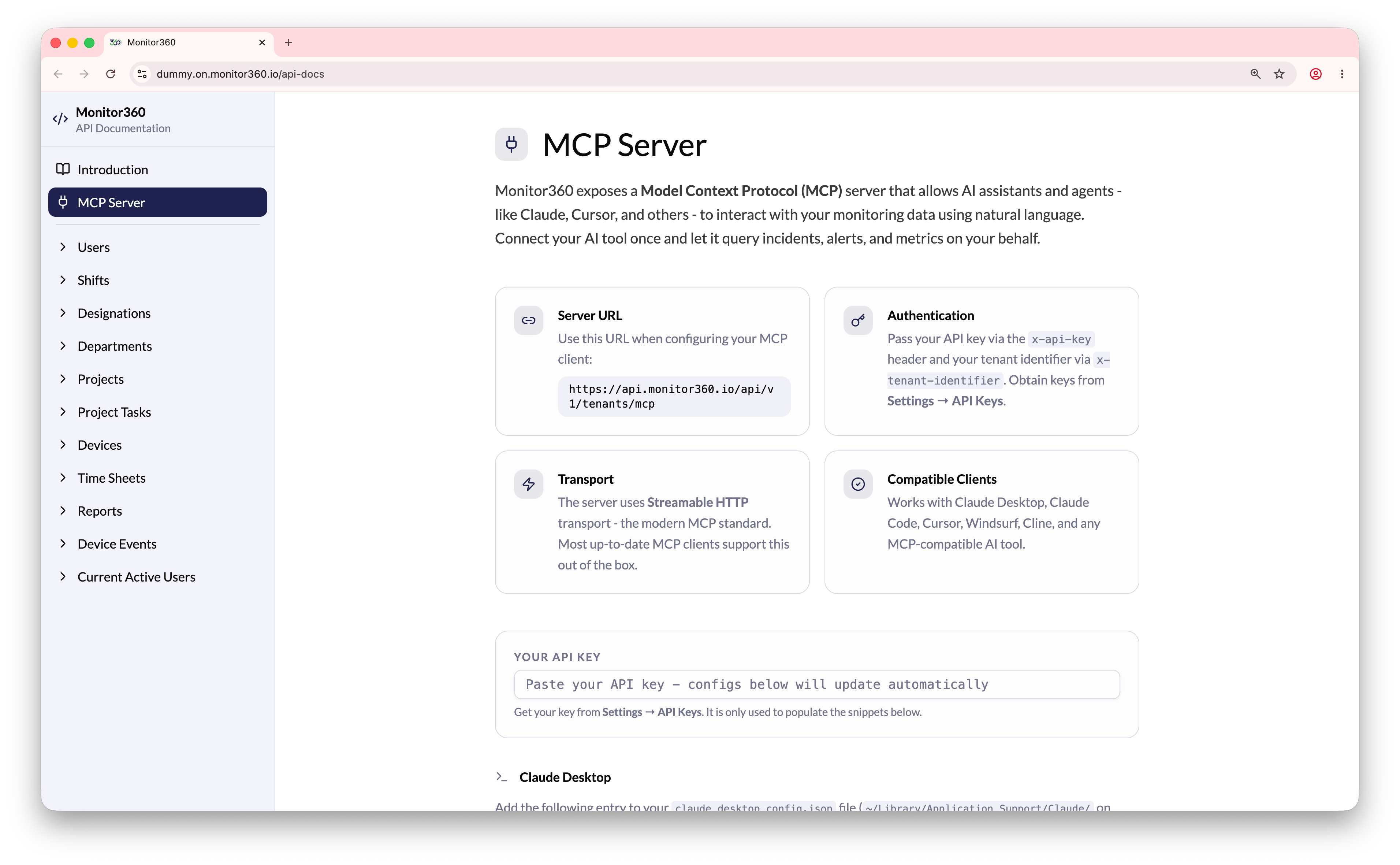
- Go to API Docs → MCP Server.
- Paste the copied API key into the Your API Key section.
- Copy the generated Server URL with query parameters from the MCP Server section.
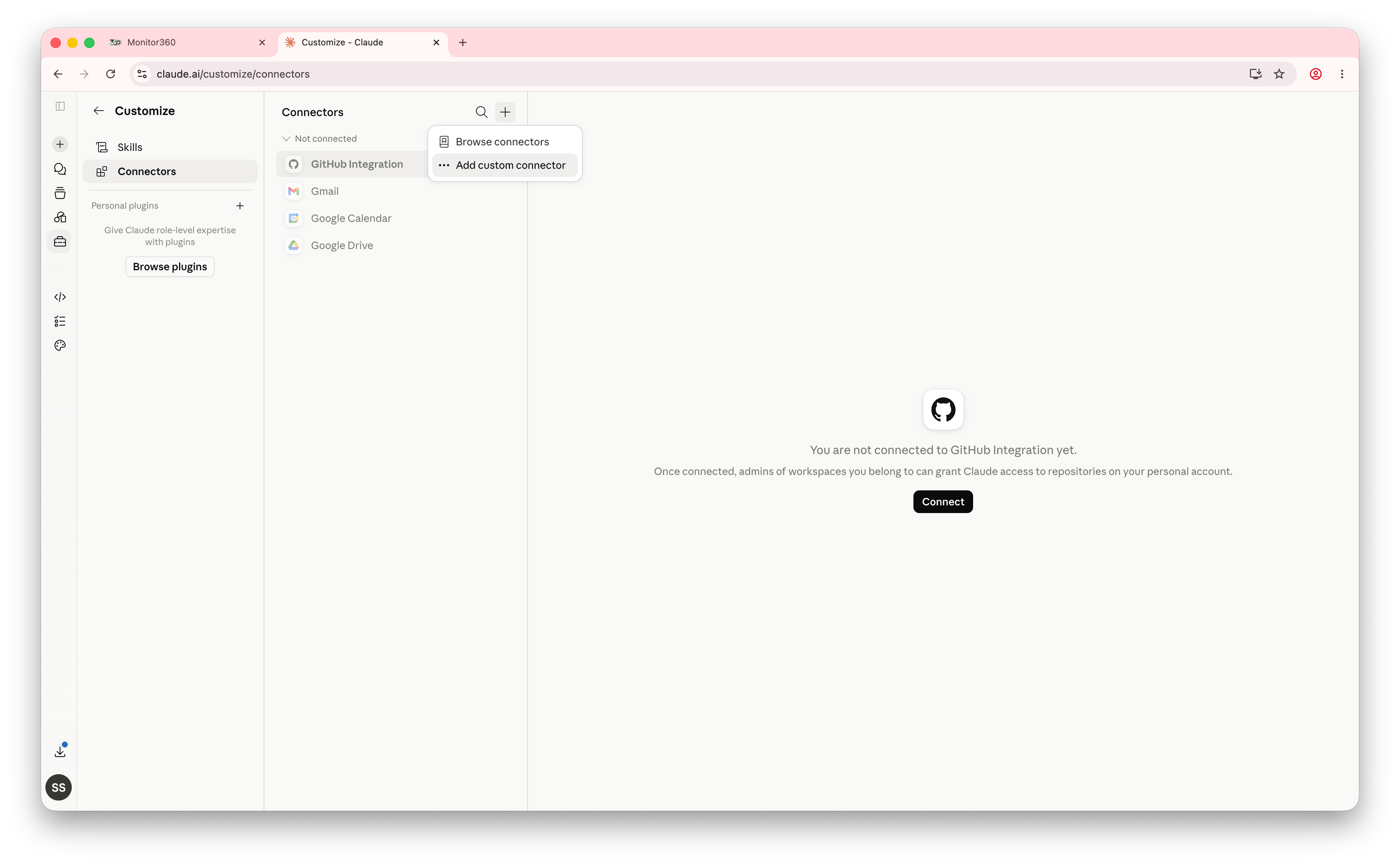
- Open Claude and go to Customise → Connectors from the left-side menu.
- Click the + icon and select Add Custom Connector.
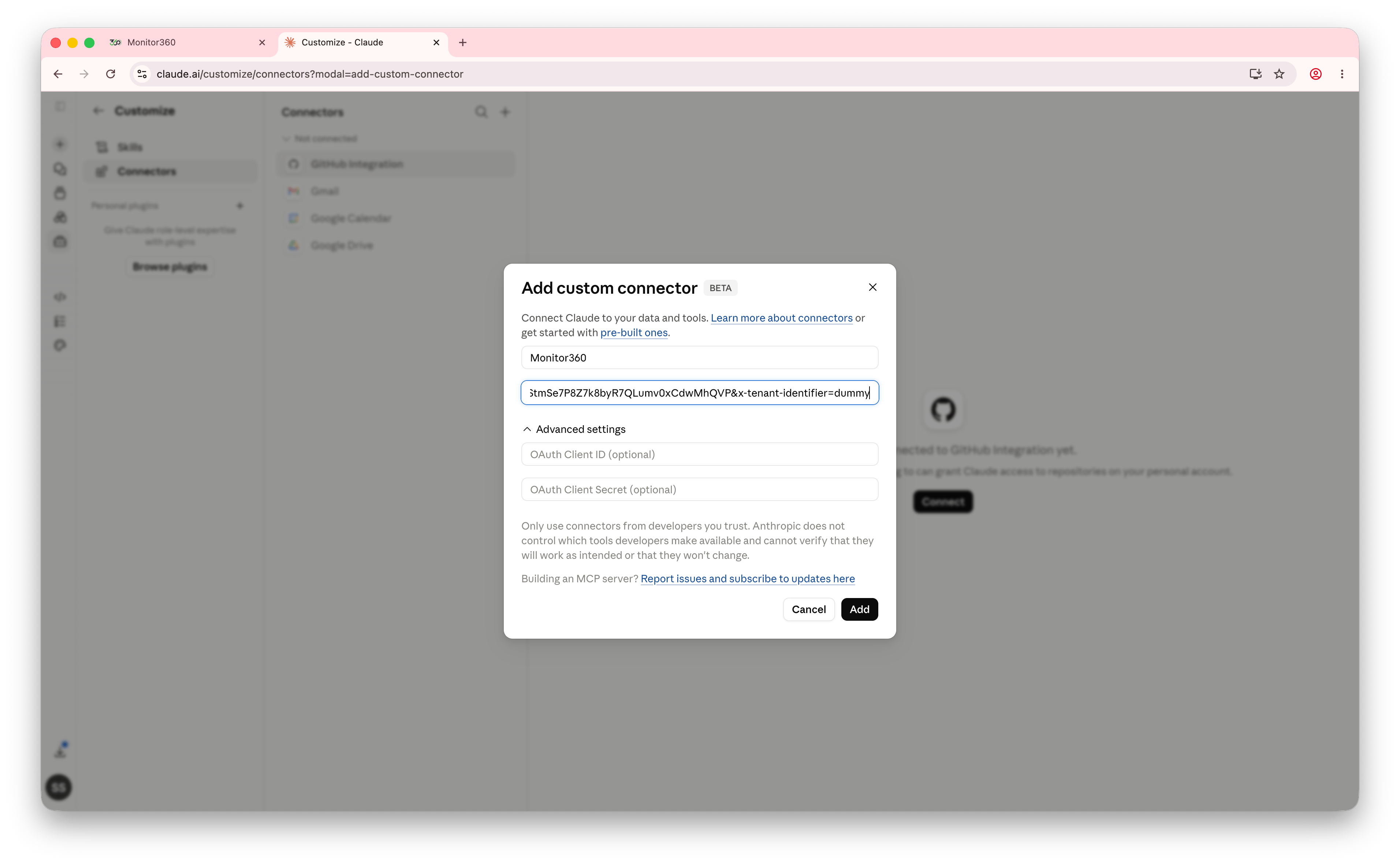
- Enter a connector name, such as the project name.
- Paste the copied server URL into the Remote MCP Server URL field.
- Set the tool permission as required - Allow Always, Needs Approval, Blocked, or Custom.
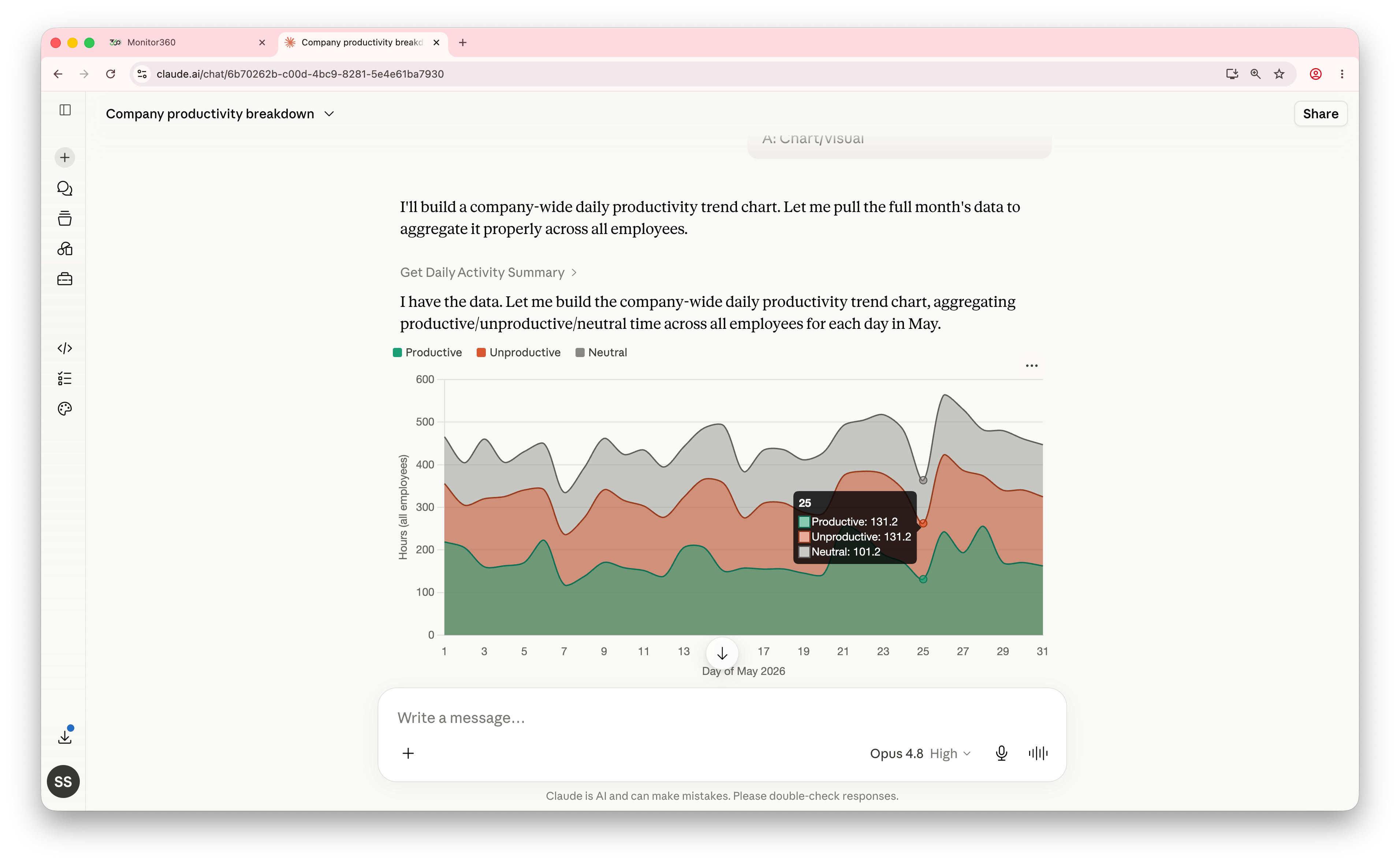
- After saving the connector, start a new chat in Claude.
- Enter a prompt related to Monitor360 data, and Claude will use the MCP connection to fetch and display the required details.