Overview
Application Grouping Rules and Website Grouping Rules group similar apps and websites together and give them a productivity level, which keeps reports easier to read. Both are under Administration → Tracker Settings.Application Grouping Rules
Group similar applications under one category to make reports easier to analyse.How to Add an Application Grouping Rule
- Go to Administration → Tracker Settings → Application Grouping Rules
- Click + Add Rule
- Enter the Group Name, Priority, and Productivity Level
- Add one or more patterns to match application names
- Turn on Enable this rule
- Click Create to save
Website Grouping Rules
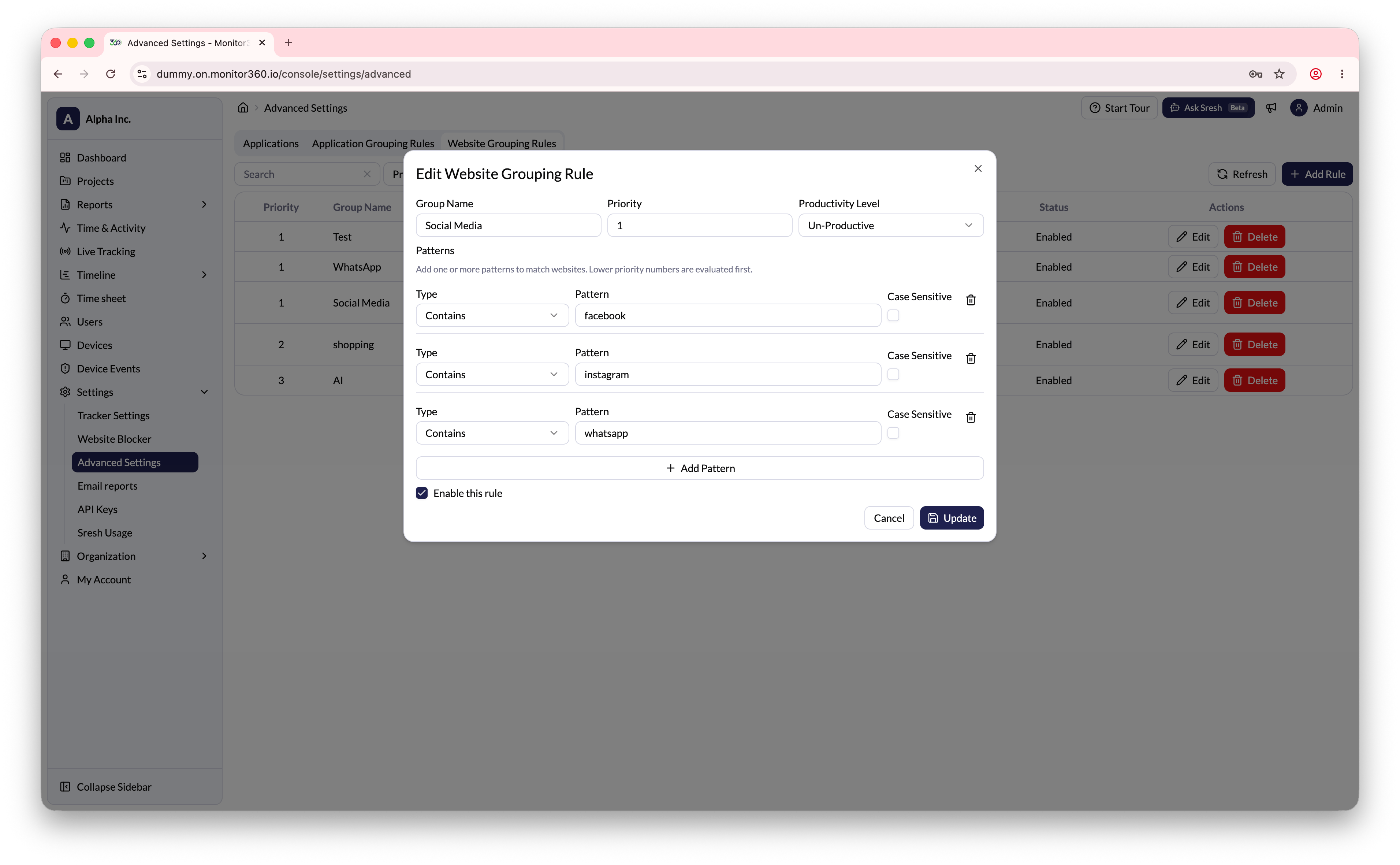
Group similar websites or domains under one category.How to Add a Website Grouping Rule
- Go to Administration → Tracker Settings → Website Grouping Rules
- Click + Add Rule
- Enter the Group Name, Priority, and Productivity Level
- Set the match Type (e.g., Contains) and enter the domain Pattern (e.g.,
facebook.com) - Enable the Case Sensitive option if needed
- Turn on Enable this rule
- Click Create to save