

How to access
Go to Users and click a user’s name or email. The user page has three tabs.Details
Update the same fields you set when adding the user: name, email, employee ID, manager, designation, department, role, excluded users (HR only), login access, shift, tags, notes, Can Access AI Chat, and AI Monthly Token Limit.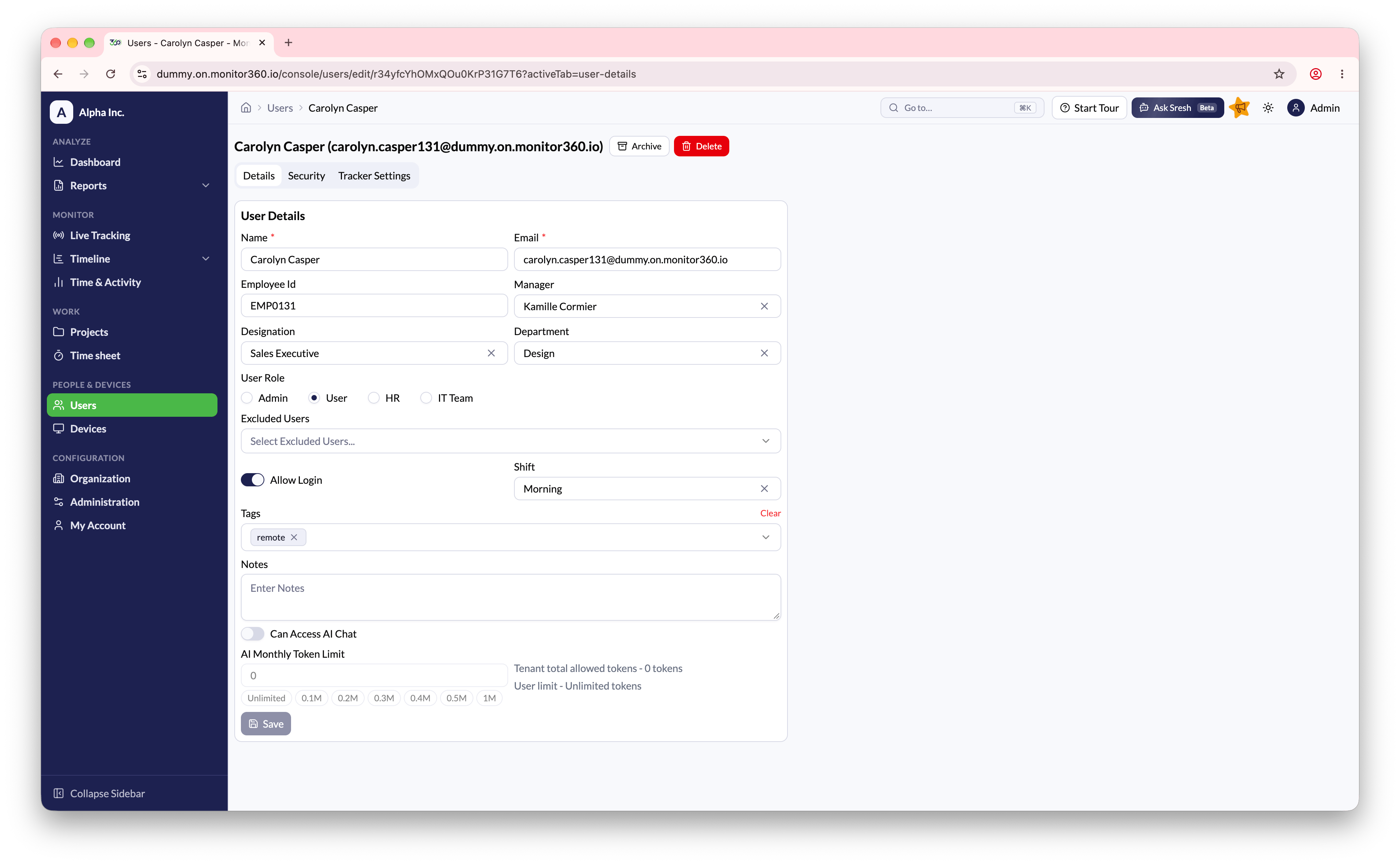
Security
Set a new password for the user. Enter it twice, then save.Tracker Settings
This tab shows the user’s tracker settings and the device their tracker is installed on. Tracker settings - override any global setting for this user, or leave it on Use Global. Device details - shows the device’s hardware, battery, app version, and permission status (Accessibility, Screen Capture, and Latest Daemon Running). If a permission is missing, click Fix to open the relevant settings on the device. You need physical access to the device to approve the prompt.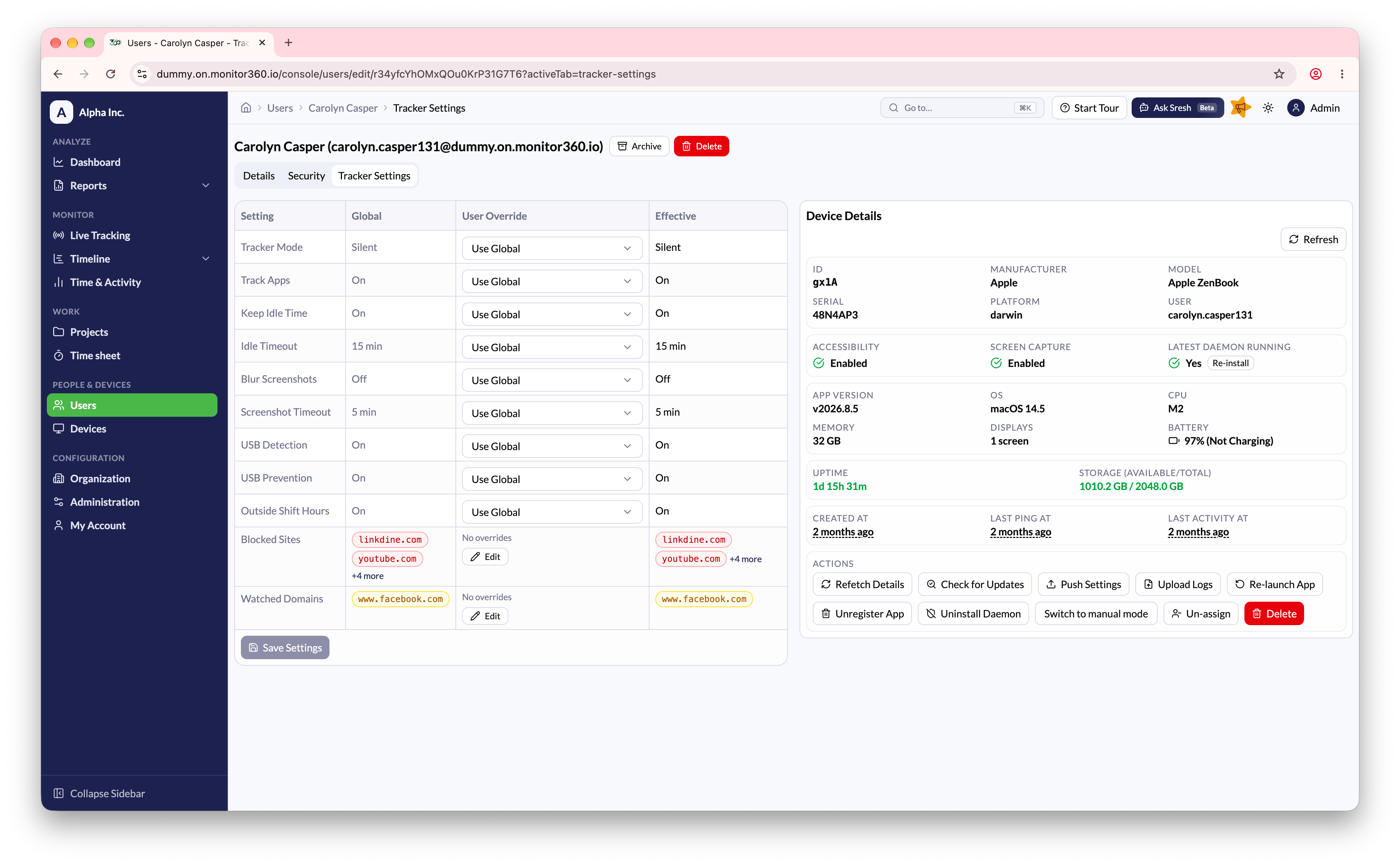
Re-launch App, Unregister App, and Uninstall Daemon need a recent desktop app version. On older versions these buttons are disabled.
Archive or delete a user
From the Users list, open the actions menu next to a user:
After archiving or deleting a user, un-register and uninstall the tracker app from their device. See Uninstalling Monitor360.