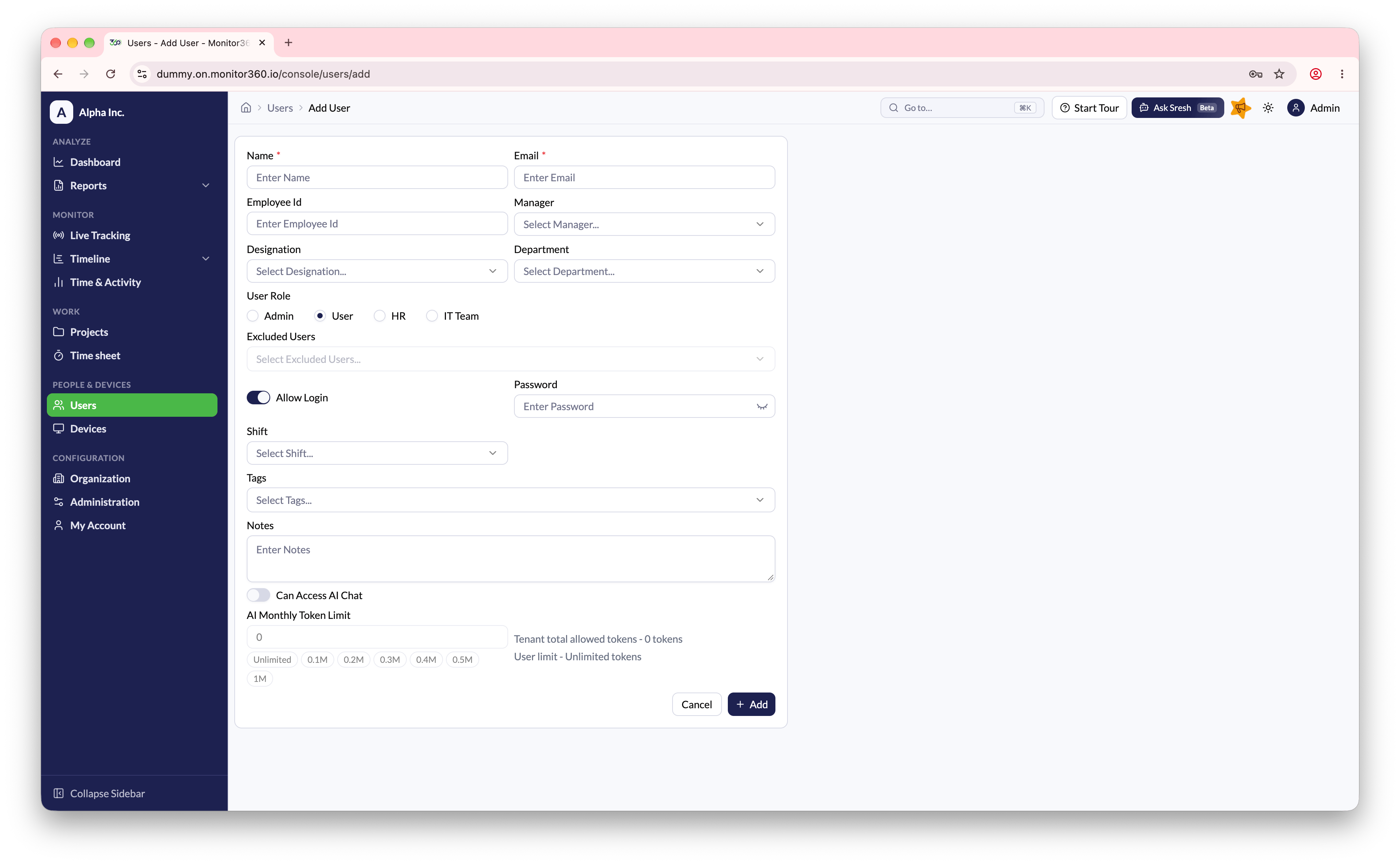
Add user steps
- Go to Users and click + Add
- Enter the user’s Name and Email. The email is used for login and notifications
- Optionally enter an Employee ID and select the user’s Manager. The manager sets the reporting hierarchy used for team visibility
- Select a Designation and Department
- Choose a User Role: Admin, User, HR, or IT Team. See User Roles
- For the HR role only, select Excluded Users. HR users can see everyone except these users
- Turn on Allow Login and set a Password if the user should be able to log in to the web console
- Assign a Shift to define the user’s working hours
- Add Tags (see below) and any internal Notes. Notes are visible only to admins
- Turn on Can Access AI Chat to let the user use Sresh AI, and set an AI Monthly Token Limit (or Unlimited)
- Click Add to save or Cancel to discard