> ## Documentation Index
> Fetch the complete documentation index at: https://docs.monitor360.io/llms.txt
> Use this file to discover all available pages before exploring further.
# Website Blocker
> Block specific websites for all employees or individual users
## Overview
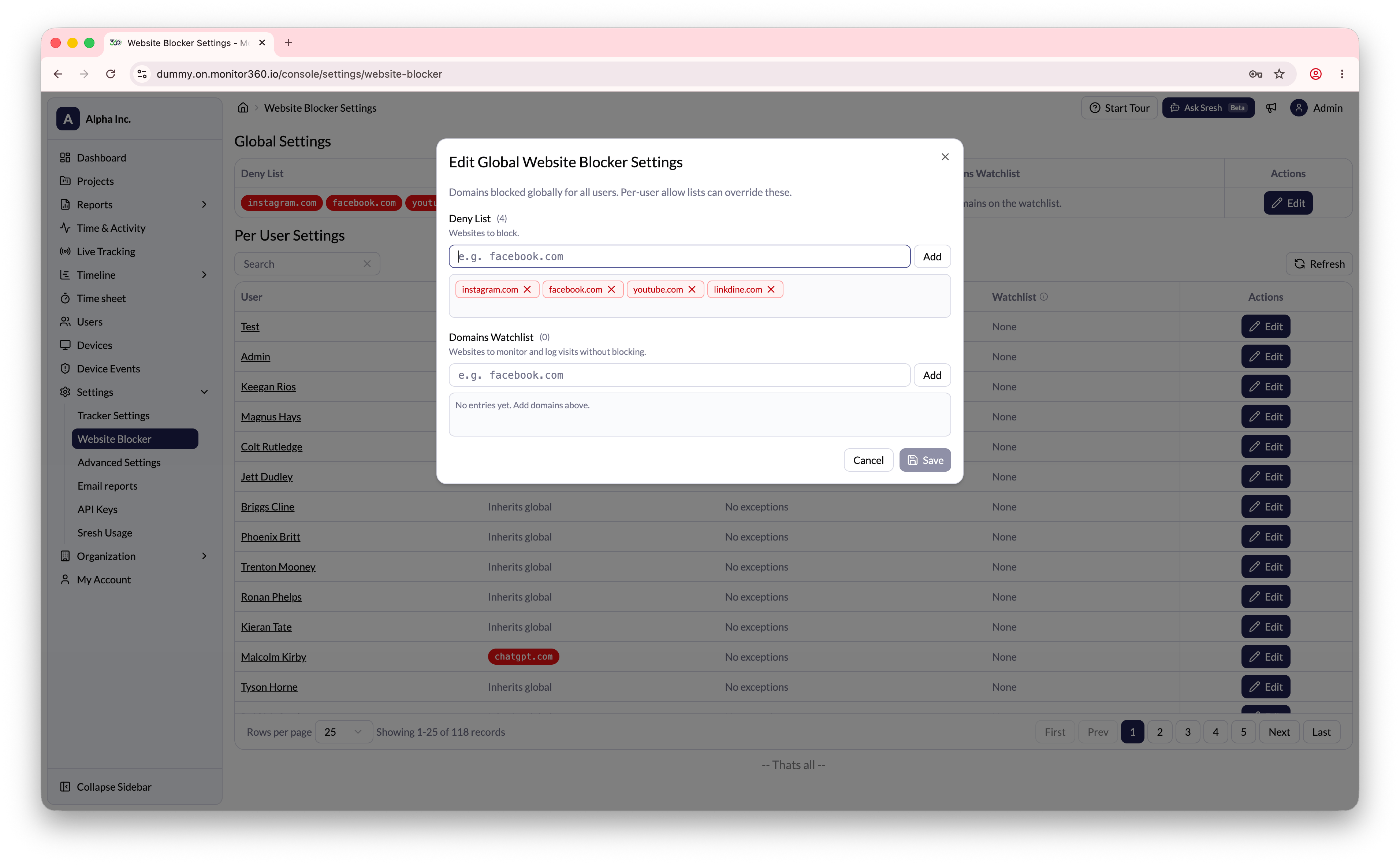
The **Website Blocker** setting allows the admin to block specific websites for all employees. Once blocked, employees will not be able to access that website during working hours.
## How to Add a Blocked Website
1. Go to **Settings → Website Blocker**
2. In the **Global Settings** section, click **Edit**
3. Enter the website or domain to be blocked (e.g., `facebook.com`)
4. Click **Add**
5. Click **Save** to apply
 ## Per-User Exceptions
The admin can also modify the website blocker settings for individual users if required - for example, to allow a specific user to access a domain that is blocked globally.
1. In the **Per User Settings** section, find the user
2. Click **Edit** next to their name
3. Add or remove domain exceptions as needed
4. Click **Save**
Use the Website Blocker to prevent access to non-work-related or restricted
websites during working hours.
## Per-User Exceptions
The admin can also modify the website blocker settings for individual users if required - for example, to allow a specific user to access a domain that is blocked globally.
1. In the **Per User Settings** section, find the user
2. Click **Edit** next to their name
3. Add or remove domain exceptions as needed
4. Click **Save**
Use the Website Blocker to prevent access to non-work-related or restricted
websites during working hours.