> ## Documentation Index
> Fetch the complete documentation index at: https://docs.monitor360.io/llms.txt
> Use this file to discover all available pages before exploring further.
# Edit User
> Update a user's details, password, tracker settings, and device
## How to access
Go to **Users** and click a user's name or email. The user page has three tabs.
## Details
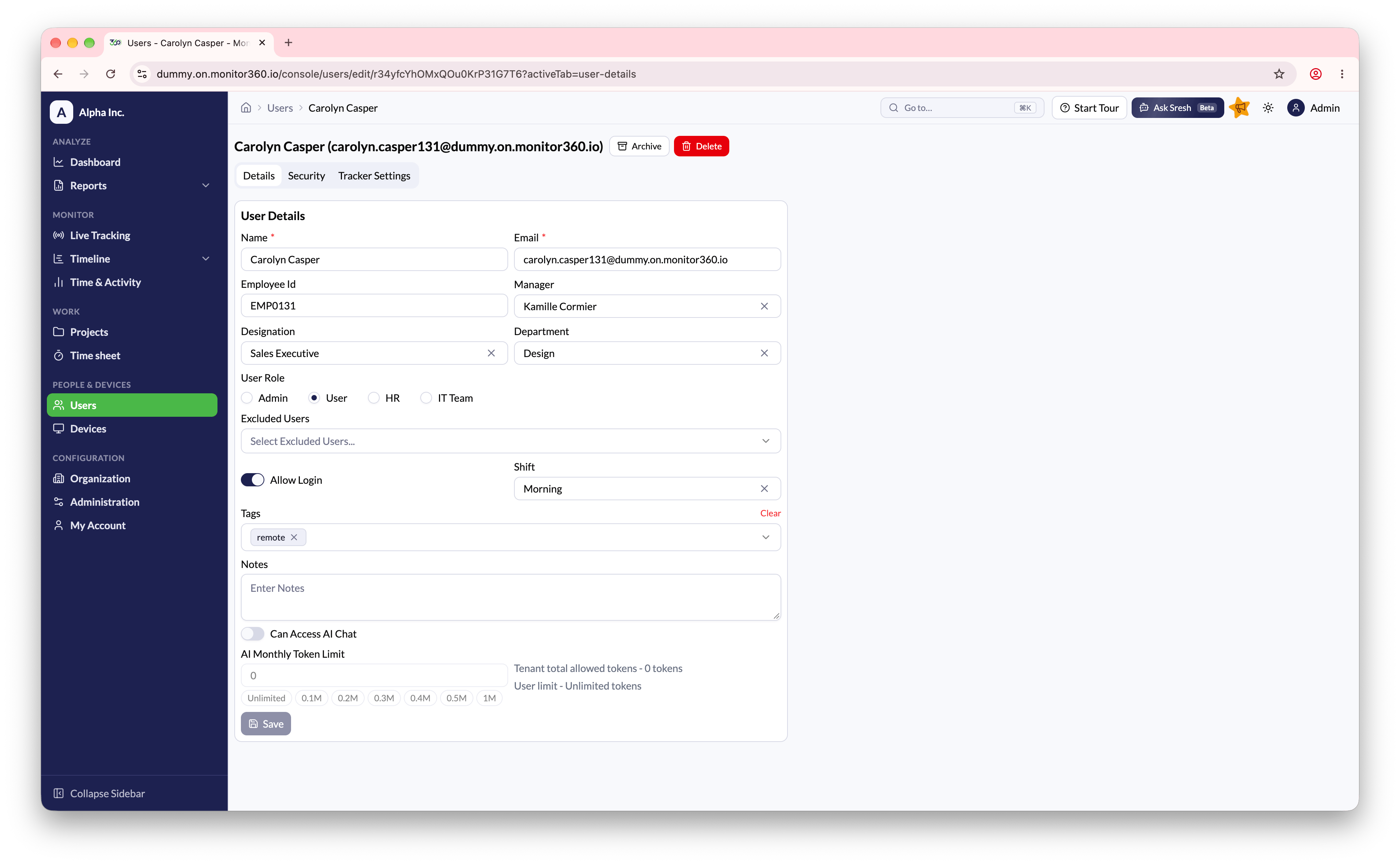
Update the same fields you set when [adding the user](/users/add-user): name, email, employee ID, manager, designation, department, role, excluded users (HR only), login access, shift, tags, notes, **Can Access AI Chat**, and **AI Monthly Token Limit**.
 ## Security
Set a new password for the user. Enter it twice, then save.
## Tracker Settings
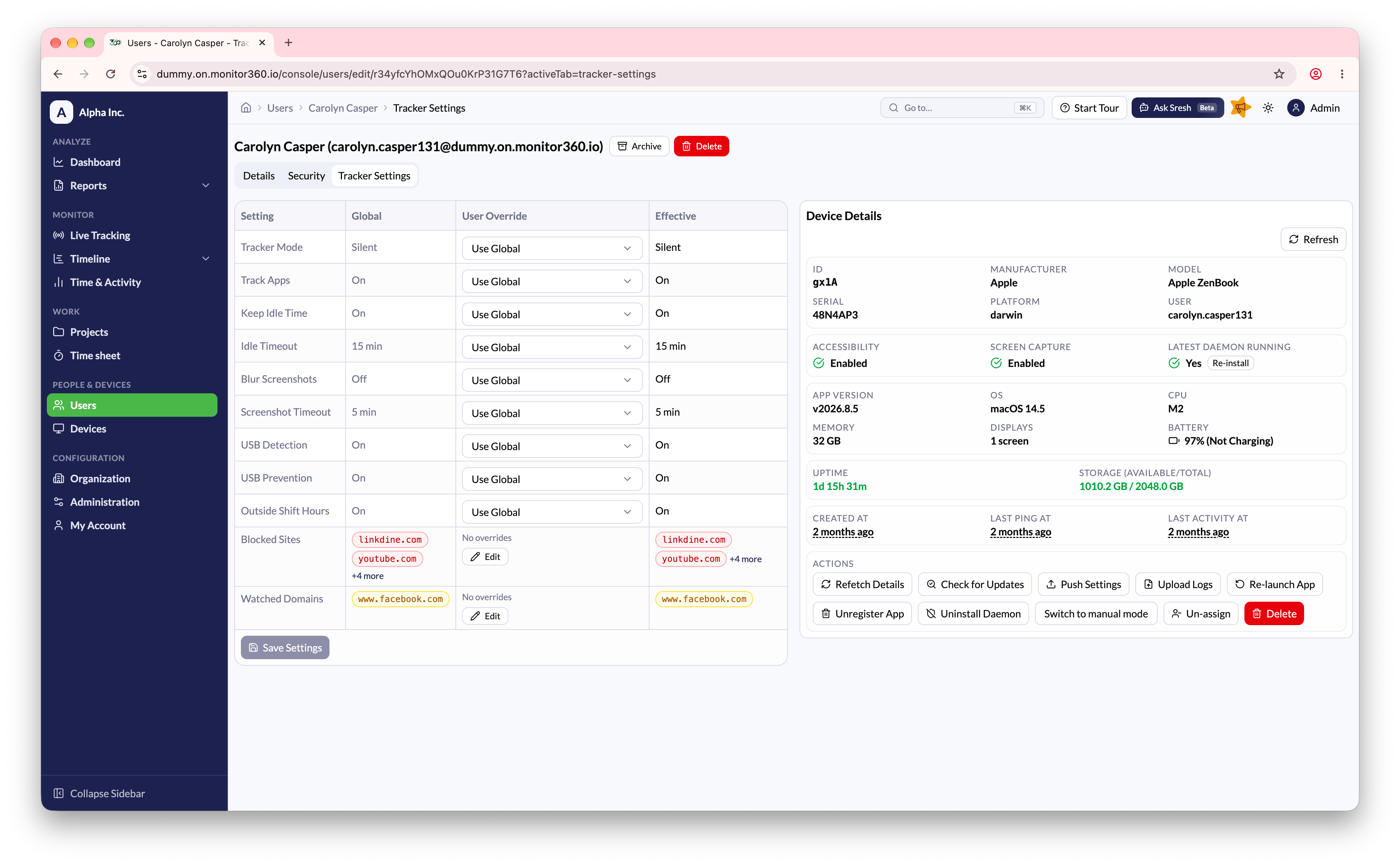
This tab shows the user's tracker settings and the device their tracker is installed on.
**Tracker settings** - override any [global setting](/tracker-settings) for this user, or leave it on **Use Global**.
**Device details** - shows the device's hardware, battery, app version, and permission status (**Accessibility**, **Screen Capture**, and **Latest Daemon Running**). If a permission is missing, click **Fix** to open the relevant settings on the device. You need physical access to the device to approve the prompt.
## Security
Set a new password for the user. Enter it twice, then save.
## Tracker Settings
This tab shows the user's tracker settings and the device their tracker is installed on.
**Tracker settings** - override any [global setting](/tracker-settings) for this user, or leave it on **Use Global**.
**Device details** - shows the device's hardware, battery, app version, and permission status (**Accessibility**, **Screen Capture**, and **Latest Daemon Running**). If a permission is missing, click **Fix** to open the relevant settings on the device. You need physical access to the device to approve the prompt.
 **Device actions:**
| Action | What it does |
| - | - |
| **Refetch Details** | Fetch the latest device information |
| **Check for Updates** | Ask the desktop app to check for and install updates |
| **Push Settings** | Send the latest tracker settings to the device right away |
| **Upload Logs** | Ask the device to upload its app logs for troubleshooting |
| **Re-launch App** | Restart the tracker app on the device |
| **Unregister App** | Remove this device's registration from the tracker app |
| **Uninstall Daemon** | Remove the background daemon service from the device |
| **Switch to manual/silent mode** | Change the tracker mode for this device |
| **Un-assign** | Detach the device from this user |
| **Delete** | Remove the device from Monitor360 |
**Re-launch App**, **Unregister App**, and **Uninstall Daemon** need a recent desktop app version. On older versions these buttons are disabled.
## Archive or delete a user
From the **Users** list, open the actions menu next to a user:
| Action | Login | Seat | Tracked data | Reversible |
| - | - | - | - | - |
| **Archive** | Blocked | Still uses a seat | Kept | Yes, with **Unarchive** |
| **Delete** | Removed | Freed | Deleted | No |
After archiving or deleting a user, un-register and uninstall the tracker app from their device. See [Uninstalling Monitor360](/uninstalling).
This documentation is built and hosted on [Mintlify](https://mintlify.com), a developer documentation platform.
**Device actions:**
| Action | What it does |
| - | - |
| **Refetch Details** | Fetch the latest device information |
| **Check for Updates** | Ask the desktop app to check for and install updates |
| **Push Settings** | Send the latest tracker settings to the device right away |
| **Upload Logs** | Ask the device to upload its app logs for troubleshooting |
| **Re-launch App** | Restart the tracker app on the device |
| **Unregister App** | Remove this device's registration from the tracker app |
| **Uninstall Daemon** | Remove the background daemon service from the device |
| **Switch to manual/silent mode** | Change the tracker mode for this device |
| **Un-assign** | Detach the device from this user |
| **Delete** | Remove the device from Monitor360 |
**Re-launch App**, **Unregister App**, and **Uninstall Daemon** need a recent desktop app version. On older versions these buttons are disabled.
## Archive or delete a user
From the **Users** list, open the actions menu next to a user:
| Action | Login | Seat | Tracked data | Reversible |
| - | - | - | - | - |
| **Archive** | Blocked | Still uses a seat | Kept | Yes, with **Unarchive** |
| **Delete** | Removed | Freed | Deleted | No |
After archiving or deleting a user, un-register and uninstall the tracker app from their device. See [Uninstalling Monitor360](/uninstalling).
This documentation is built and hosted on [Mintlify](https://mintlify.com), a developer documentation platform.