> ## Documentation Index
> Fetch the complete documentation index at: https://docs.monitor360.io/llms.txt
> Use this file to discover all available pages before exploring further.
# Uninstalling Monitor360
> Steps to completely remove Monitor360 from a device
## Overview
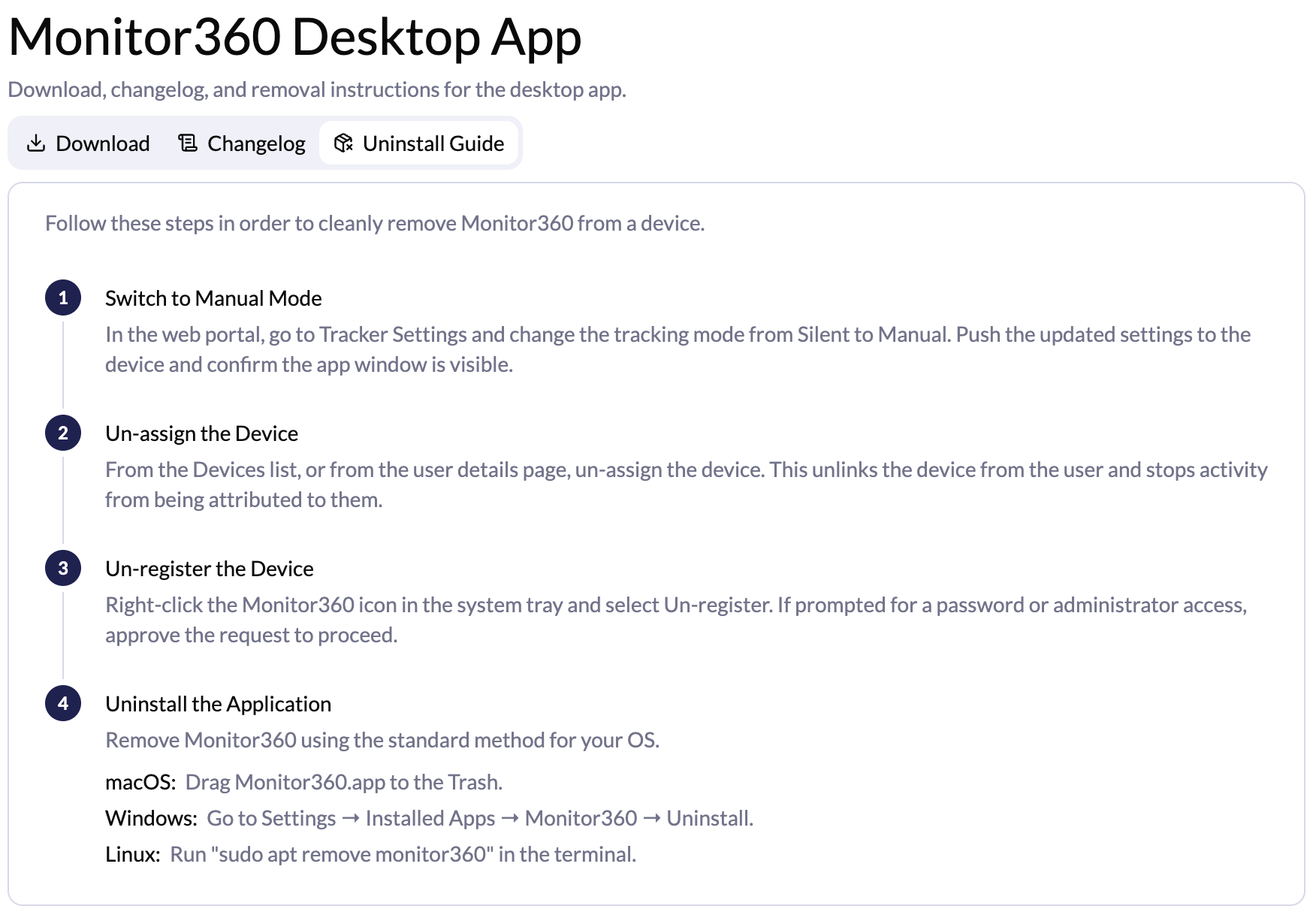
To completely remove Monitor360 from a device, follow these steps in order. Skipping steps may leave residual tracking active or cause issues during reinstallation.
## Step 1: Switch to Manual Mode
In the Monitor360 web portal, go to **Settings → Tracker Settings** and change the tracking mode from **Silent** to **Manual**. Push the updated settings to the device and confirm the app window is visible on the device.
## Step 2: Unassign the Device
From the **Devices** list, or from the user's details page, unassign the device. This unlinks the device from the user and stops activity from being attributed to them.
## Step 3: Unregister the Device
On the device itself, right-click the Monitor360 icon in the system tray and select **Unregister**. If prompted for a password or admin confirmation, approve the request to proceed.
## Step 4: Uninstall the Application
Remove Monitor360 using the standard uninstall method for the operating system:
* **macOS** - Drag `Monitor360.app` to the Trash
* **Windows** - Go to **Settings → Installed Apps → Monitor360 → Uninstall**
* **Linux** - Run `sudo apt remove monitor360` in the terminal
 Ensure the device is unassigned and unregistered before uninstalling the
application.
Ensure the device is unassigned and unregistered before uninstalling the
application.