> ## Documentation Index
> Fetch the complete documentation index at: https://docs.monitor360.io/llms.txt
> Use this file to discover all available pages before exploring further.
# Track Apps
> Enable or disable application usage tracking for users
## Overview
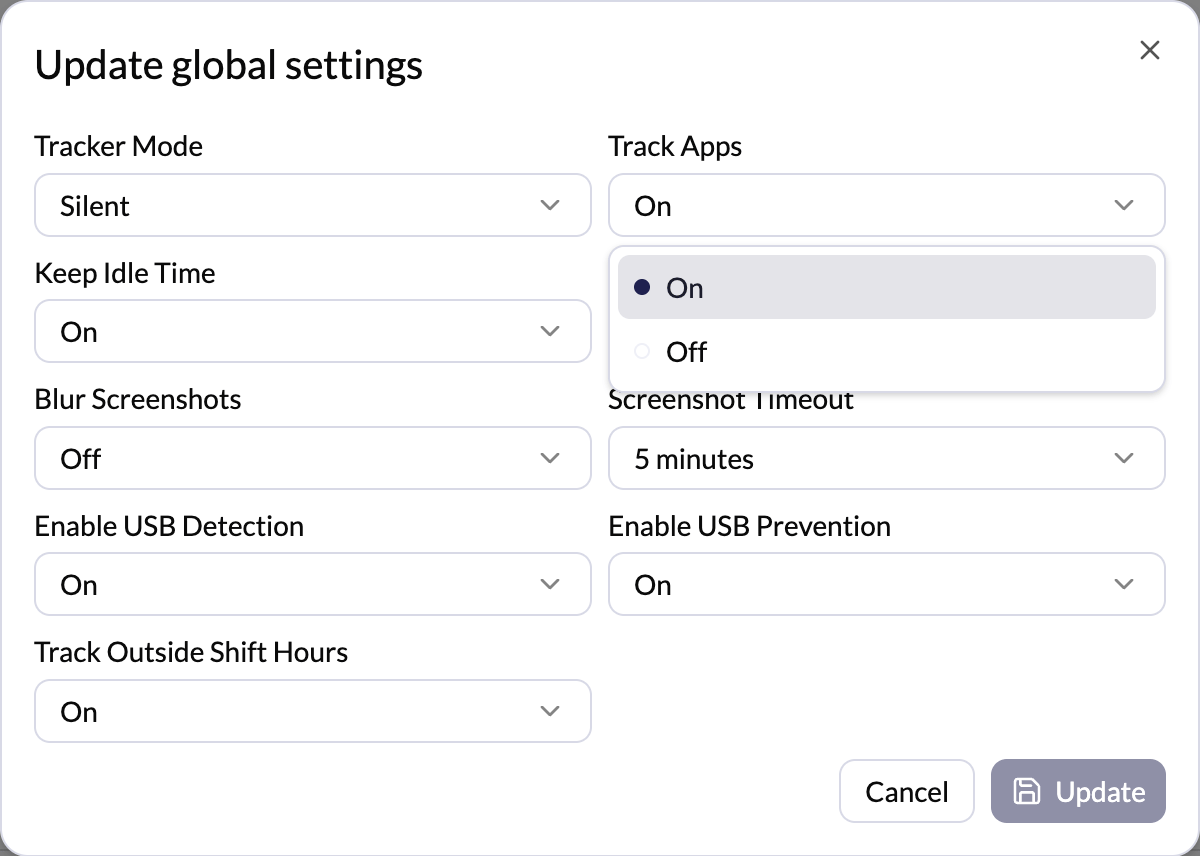
The **Track Apps** setting controls whether the system records the applications used by each user during working hours.
## Options
* **On** - Application usage is recorded throughout the working session
* **Off** - Application tracking is disabled
## How to Configure
1. Go to **Settings → Tracker Settings**
2. Click **Edit** in the Global Settings section (or click **Edit** next to a specific user for per-user settings)
3. Set **Track Apps** to **On** or **Off**
4. Click **Update** to save
 When enabled, app usage data appears in Time & Activity, User Reports, and
Apps & Websites Reports - helping you understand how work time is spent across
different tools.
When enabled, app usage data appears in Time & Activity, User Reports, and
Apps & Websites Reports - helping you understand how work time is spent across
different tools.