> ## Documentation Index
> Fetch the complete documentation index at: https://docs.monitor360.io/llms.txt
> Use this file to discover all available pages before exploring further.
# Applications
> Set the productivity level of each application your team uses
## Overview
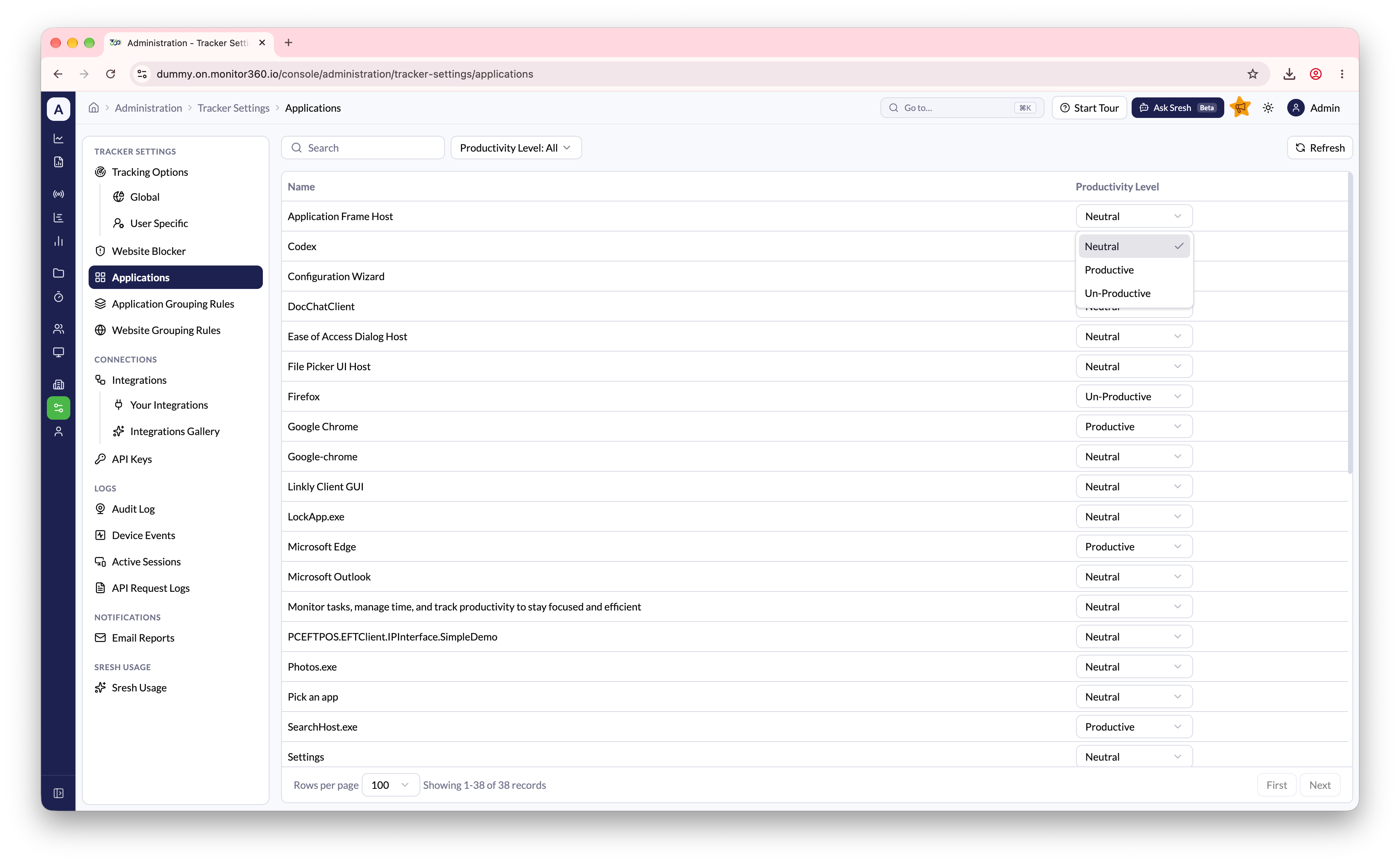
The **Applications** page lists every application that Monitor360 has recorded on your team's devices. You can set a **Productivity Level** for each one. That level is used in productivity metrics across reports, Time & Activity, and dashboard widgets.
## How to access
Go to **Administration → Tracker Settings → Applications**.
## Set a productivity level
1. Find the application with **Search**, or filter the list by **Productivity Level**
2. In the **Productivity Level** column, choose **Productive**, **Neutral**, or **Un-Productive**
3. The change saves immediately
 To classify many similar apps at once (for example, all browsers or all chat apps), use [Application Grouping Rules](/advanced-settings) instead of setting each app one by one.
This documentation is built and hosted on [Mintlify](https://mintlify.com), a developer documentation platform.
To classify many similar apps at once (for example, all browsers or all chat apps), use [Application Grouping Rules](/advanced-settings) instead of setting each app one by one.
This documentation is built and hosted on [Mintlify](https://mintlify.com), a developer documentation platform.