> ## Documentation Index
> Fetch the complete documentation index at: https://docs.monitor360.io/llms.txt
> Use this file to discover all available pages before exploring further.
# Email Reports
> Receive automated reports by email
## Overview
The **Email Reports** feature is used to receive automated reports by email for individual users and teams.
Go to **Administration → Notifications → Email Reports**. Each report has its own toggle. When a report is off, no email is sent, whatever its other settings are.
## Daily Report
Send your personal work report by email.
* Turn on **Enable Daily Report**
* Set the **schedule time** (24-hour format)
* Choose **Report Of:**
* **Same Day** - report for today
* **Previous Day** - report for yesterday
* Select report content such as Projects, Tasks, Top Applications, and Top Websites
## Daily Team Report
Send a consolidated report for all team members.
* Turn on **Enable Daily Team Report**
* Set the **delivery time**
* Choose the **Same Day** or **Previous Day** report
* Include details like Users, Projects, Tasks, Top Applications, and Top Websites
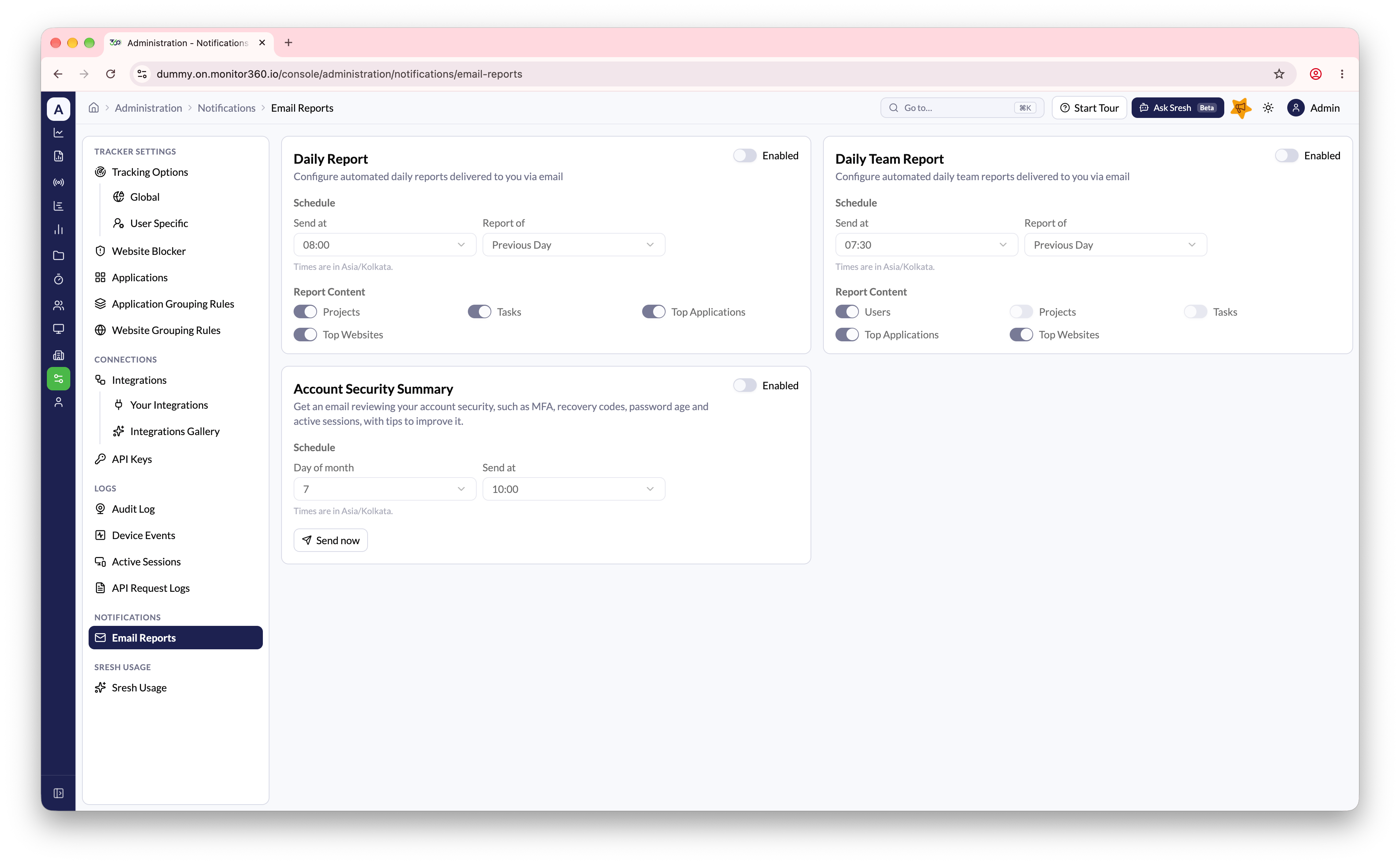 ## Account Security Summary
A monthly email that reviews the security of your own account, with tips to improve it. It covers:
* Multi-factor authentication methods
* Recovery codes
* Password age
* Active sessions
To set it up:
1. Turn on **Enabled** in the **Account Security Summary** card
2. Under **Schedule**, choose the **Day of month** (1 to 28) and the **Send at** time. Times are in your workspace's timezone
3. Click **Save Changes**
Click **Send now** to get the summary straight away, for example to check what it looks like.
To act on the tips, go to **My Account → Multi-Factor Auth**, **Security**, or
**Active Sessions**. See [My Account](/getting-started/my-account).
This documentation is built and hosted on [Mintlify](https://mintlify.com), a developer documentation platform.
## Account Security Summary
A monthly email that reviews the security of your own account, with tips to improve it. It covers:
* Multi-factor authentication methods
* Recovery codes
* Password age
* Active sessions
To set it up:
1. Turn on **Enabled** in the **Account Security Summary** card
2. Under **Schedule**, choose the **Day of month** (1 to 28) and the **Send at** time. Times are in your workspace's timezone
3. Click **Save Changes**
Click **Send now** to get the summary straight away, for example to check what it looks like.
To act on the tips, go to **My Account → Multi-Factor Auth**, **Security**, or
**Active Sessions**. See [My Account](/getting-started/my-account).
This documentation is built and hosted on [Mintlify](https://mintlify.com), a developer documentation platform.