> ## Documentation Index
> Fetch the complete documentation index at: https://docs.monitor360.io/llms.txt
> Use this file to discover all available pages before exploring further.
# API Keys
> Generate and manage API keys for Monitor360 integrations
## Overview
The **API Keys** section allows the admin to generate and manage API keys for use with Monitor360's API.
## Creating a New API Key
1. Go to **Administration → Connections → API Keys**
2. Click **+ New API Key**
3. Enter a descriptive name for the key
4. Click **Create**
5. **Copy the API key immediately** - it is shown only once and cannot be retrieved later
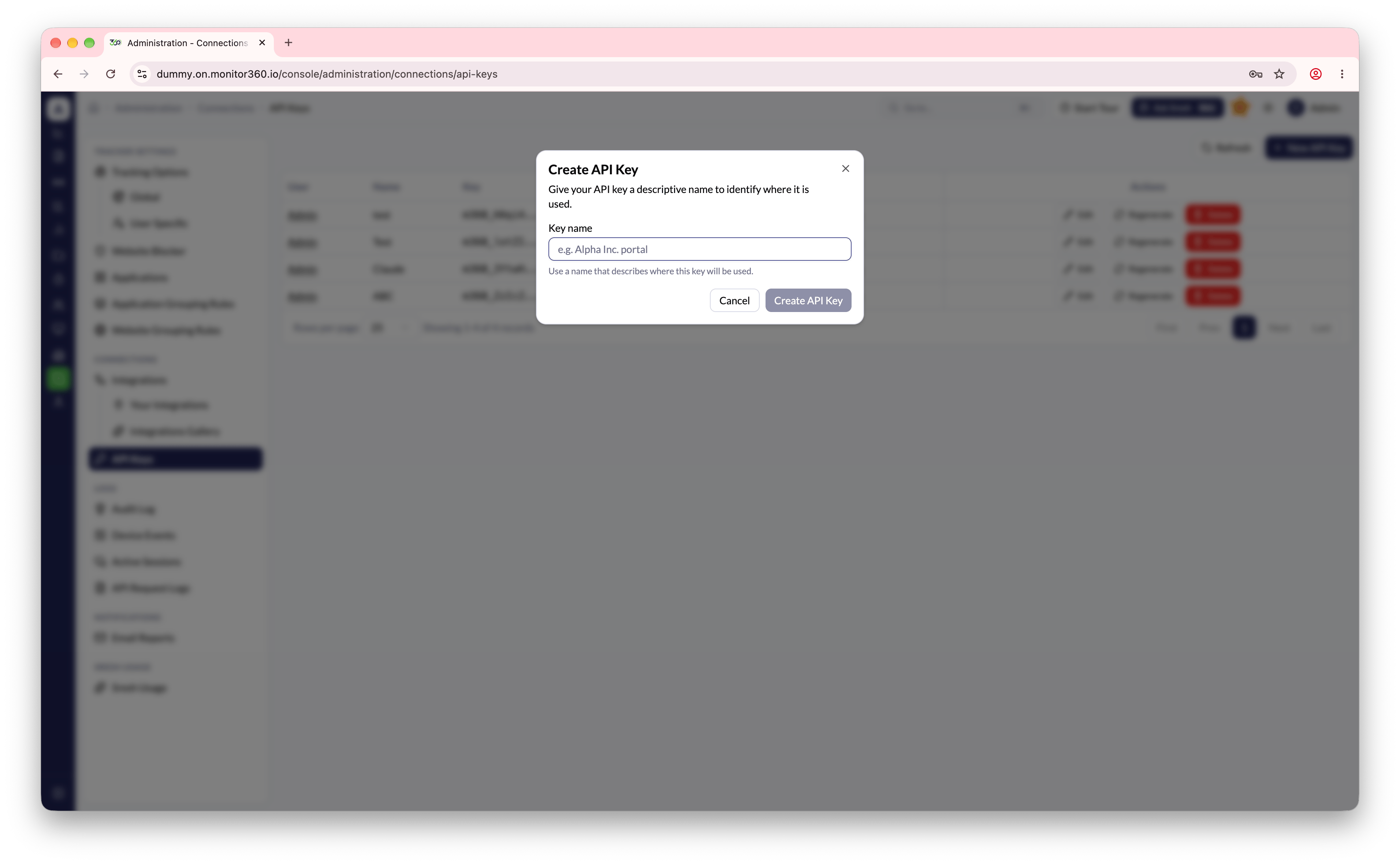 The API key is visible only one time after creation. Copy it and store it
securely. If you lose it, you will need to regenerate it.
## Managing Existing API Keys
| Action | Description |
| - | - |
| **Edit** | Update the name of an existing API key |
| **Regenerate** | Create a new key value for an existing record (the old key will stop working) |
| **Delete** | Remove an API key that is no longer required |
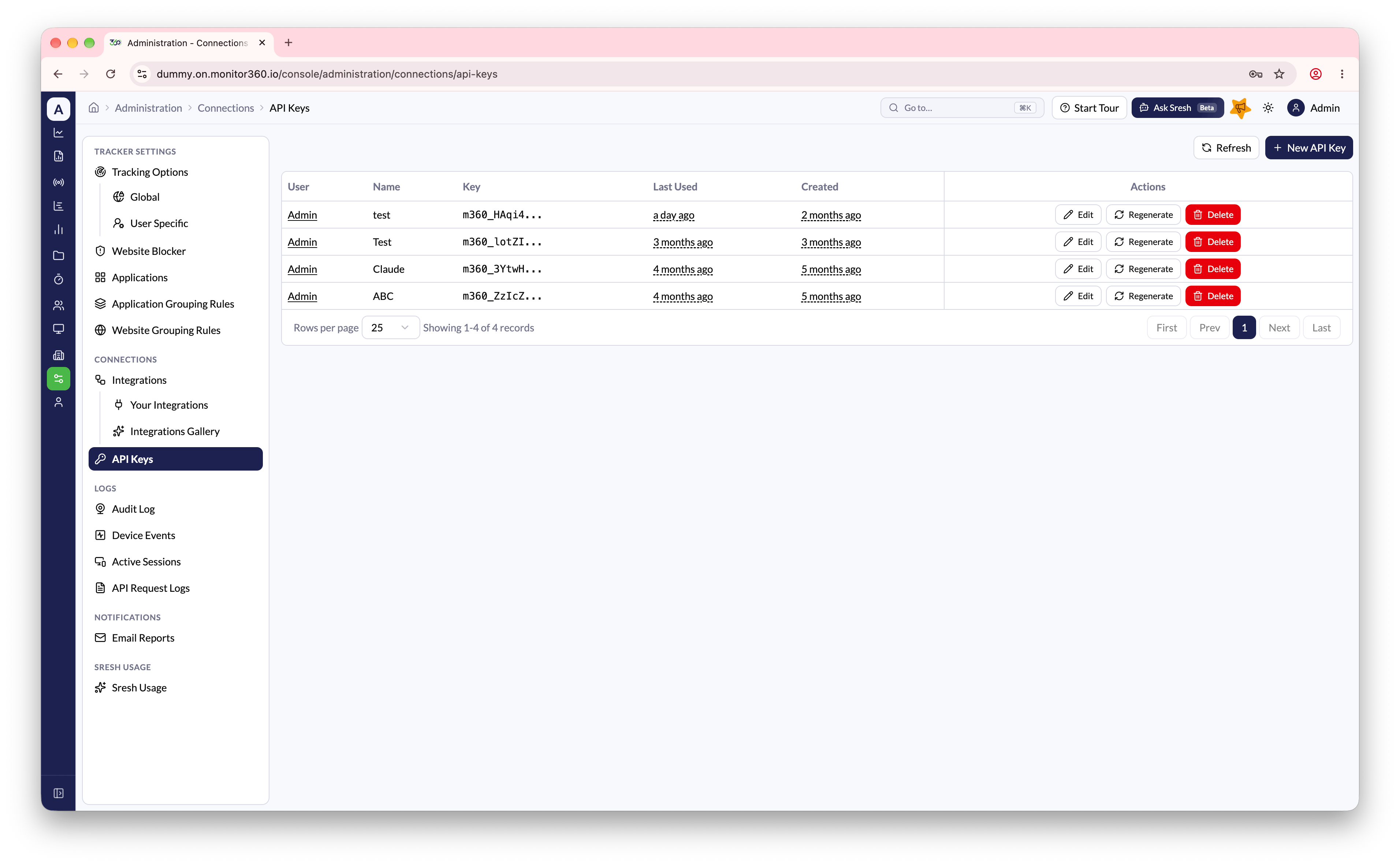
The list shows each key's owner, a masked version of the key, when it was last used, and when it was created.
## API documentation
Open **API Docs** from the [profile menu](/profile-menu) to browse the available endpoints and connect AI tools through the [MCP Server](/mcp-server).
The API key is visible only one time after creation. Copy it and store it
securely. If you lose it, you will need to regenerate it.
## Managing Existing API Keys
| Action | Description |
| - | - |
| **Edit** | Update the name of an existing API key |
| **Regenerate** | Create a new key value for an existing record (the old key will stop working) |
| **Delete** | Remove an API key that is no longer required |
The list shows each key's owner, a masked version of the key, when it was last used, and when it was created.
## API documentation
Open **API Docs** from the [profile menu](/profile-menu) to browse the available endpoints and connect AI tools through the [MCP Server](/mcp-server).
 ## Viewing Request Logs
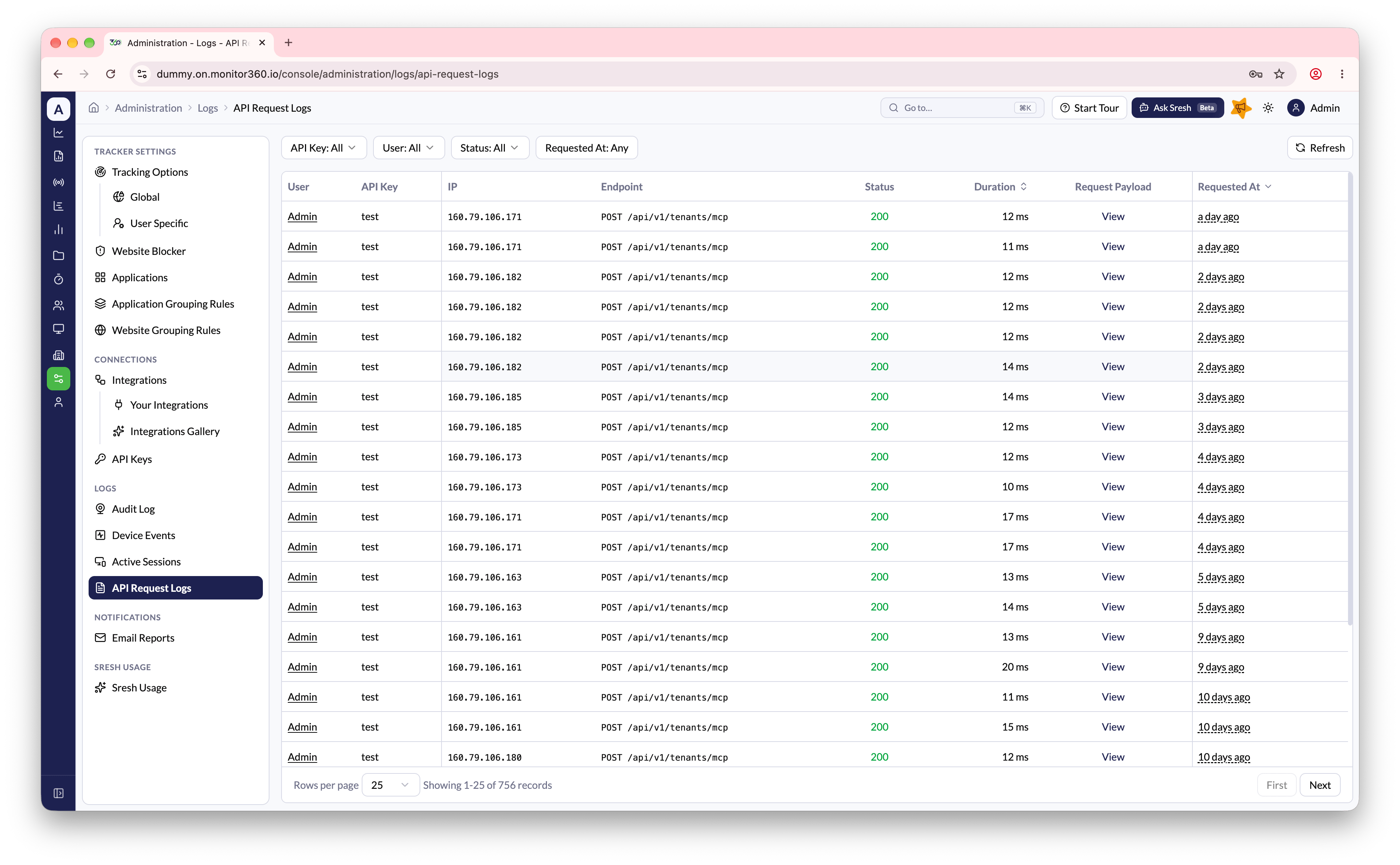
Every request made using an API key is logged. Go to **Administration → Logs → API Request Logs** to see the full history.
* **Filter** by API Key, User, Status, and Requested At
* Each entry shows the **User**, **API Key**, **IP**, **Endpoint**, **Status**, **Duration**, and **Requested At**
* Click **View** under **Request Payload** to inspect the payload sent with a request
## Viewing Request Logs
Every request made using an API key is logged. Go to **Administration → Logs → API Request Logs** to see the full history.
* **Filter** by API Key, User, Status, and Requested At
* Each entry shows the **User**, **API Key**, **IP**, **Endpoint**, **Status**, **Duration**, and **Requested At**
* Click **View** under **Request Payload** to inspect the payload sent with a request
 This documentation is built and hosted on [Mintlify](https://mintlify.com), a developer documentation platform.