> ## Documentation Index
> Fetch the complete documentation index at: https://docs.monitor360.io/llms.txt
> Use this file to discover all available pages before exploring further.
# Device Report
> View device health and identify devices that need attention
## Overview
The **Device Report** allows the admin and IT team to view device health status and identify devices that require attention.
This report is visible only to **Admin** and **IT Team** users.
## How to Access
Go to **Reports → Device**.
## Device Status Categories
| Status | Description |
| ----------------------- | --------------------------------------------------------------- |
| **Inactive Devices** | Devices that have not been active for more than 3 days |
| **Outdated App** | Devices running an older version of the Monitor360 desktop app |
| **Missing Permissions** | Devices where required system permissions have not been granted |
| **Unassigned Devices** | Devices that are not linked to any user account |
| **Low Storage** | Devices with available storage below 20 GB |
| **Long Uptime** | Devices running for 7+ days without a restart |
## Resolving Issues
* Use the **Fix** button next to a specific device to resolve the issue
* Use **Fix All** to apply the fix to all affected devices in a category where available
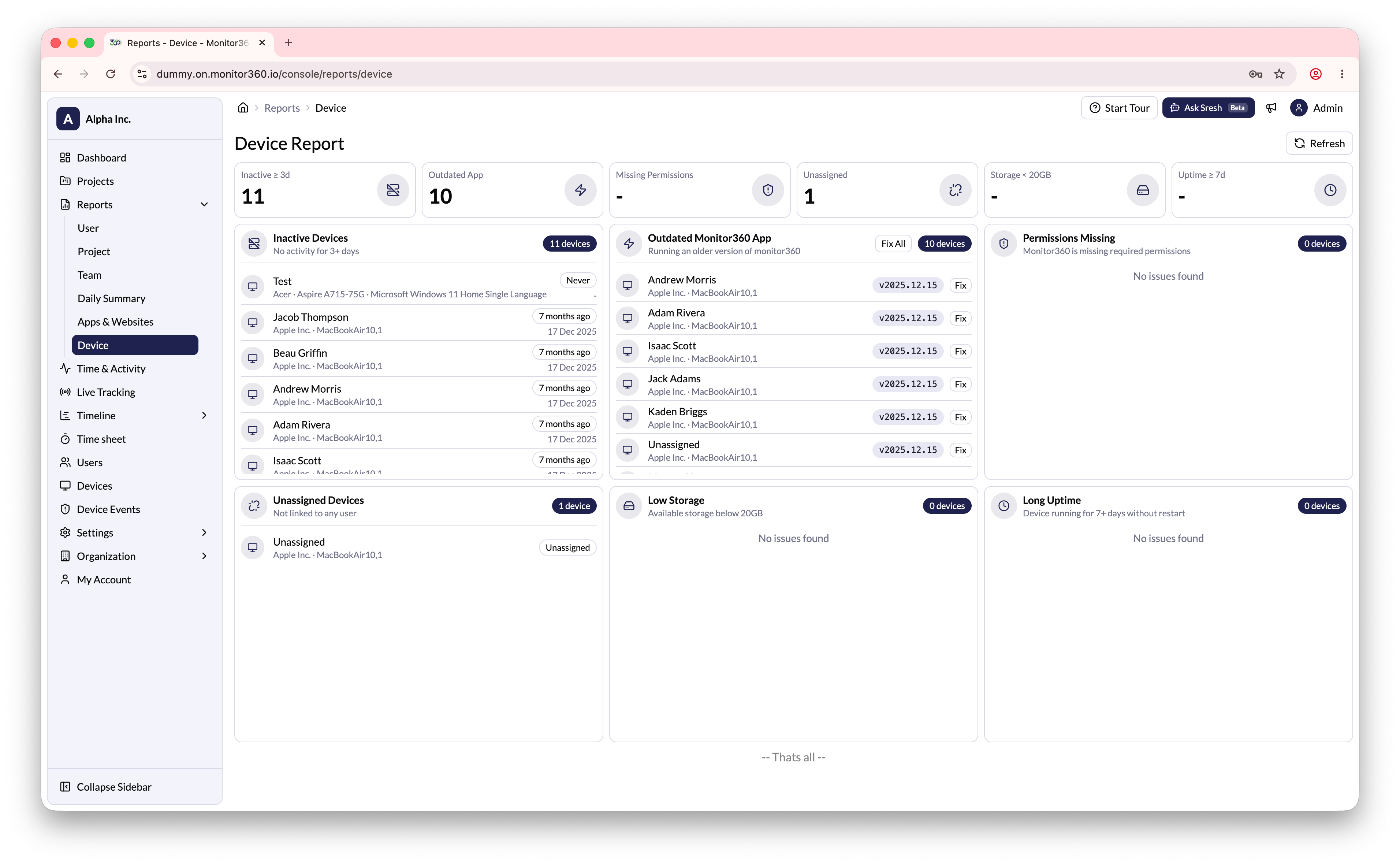 Click **Refresh** to view the latest device report data.