> ## Documentation Index
> Fetch the complete documentation index at: https://docs.monitor360.io/llms.txt
> Use this file to discover all available pages before exploring further.
# Custom Branding
> Personalise Monitor360 with your organisation's logo and colour theme
## Overview
The **Custom Branding** section allows the admin to customise the look and feel of Monitor360 based on the organisation's branding, including the logo and primary colour.
## How to Configure Branding
1. Go to **Organization → Custom Branding**
2. Upload the **Organization Logo** (recommended: 512×512 px, PNG with transparent background)
3. Choose a **Primary Colour** from the preset swatches, or enter a custom hex code
4. A live preview is shown on the right side of the screen
5. Click **Apply Colour** to save and apply the selected branding
To revert back to the default Monitor360 branding, click **Reset to Default**.
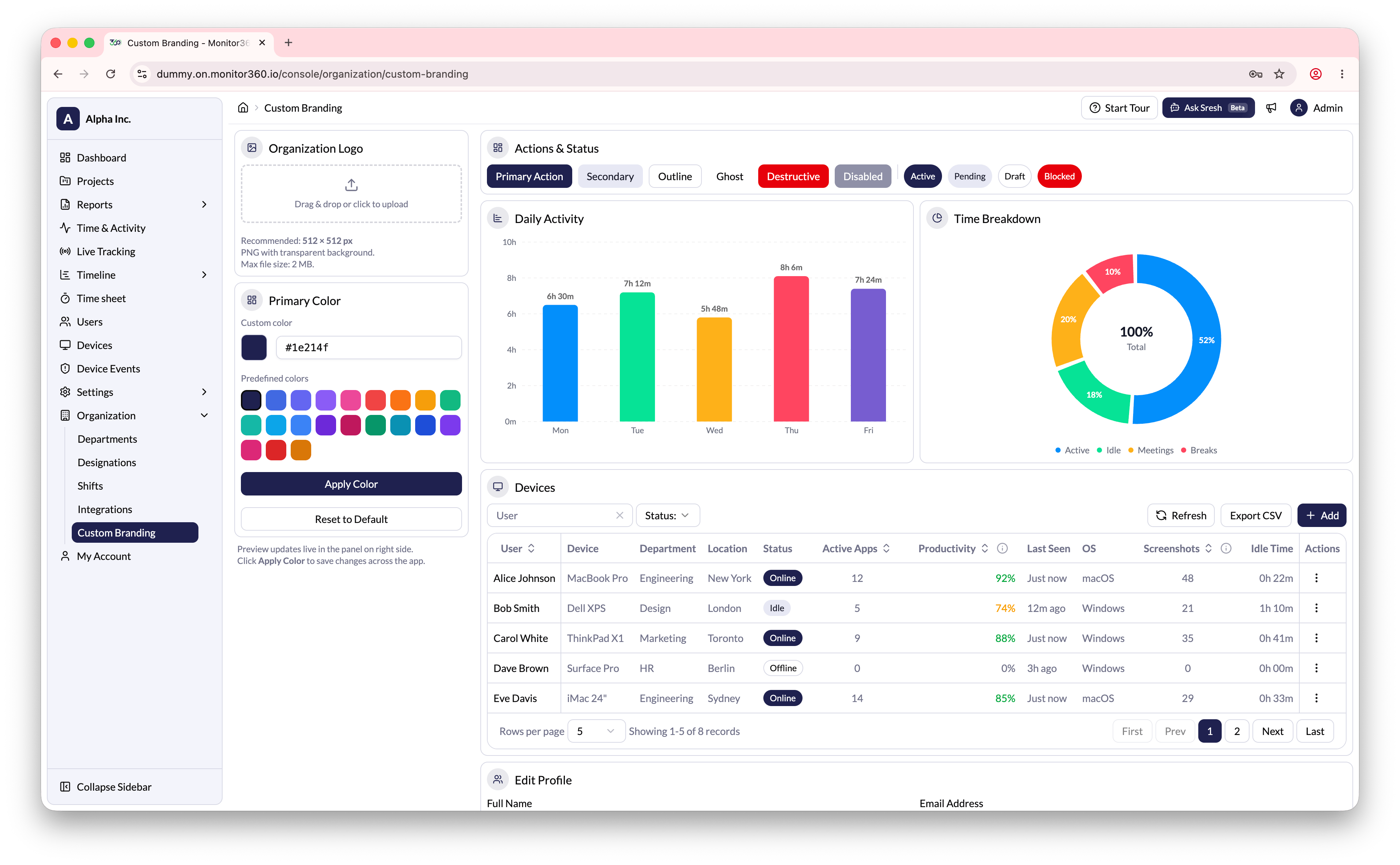 Custom branding is reflected across the login page and the application
interface - making the platform feel native to your organisation.
Custom branding is reflected across the login page and the application
interface - making the platform feel native to your organisation.