> ## Documentation Index
> Fetch the complete documentation index at: https://docs.monitor360.io/llms.txt
> Use this file to discover all available pages before exploring further.
# Navigating the Console
> Find your way around the Monitor360 web console
## Sidebar layout
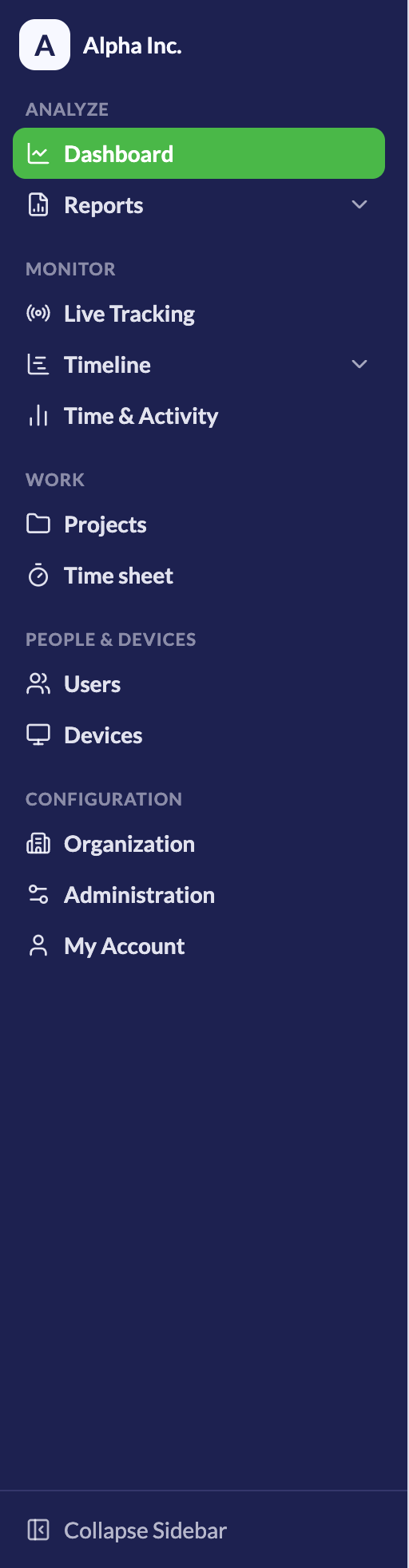
The left sidebar groups pages by what you want to do. You only see the pages your [role](/getting-started/user-roles) and plan give you access to.
| Section | Pages |
| - | - |
| **Analyze** | [Dashboard](/dashboard), [Reports](/reports/overview) |
| **Monitor** | [Live Tracking](/live-tracking), [Timeline](/timeline/overview), [Time & Activity](/time-and-activity) |
| **Work** | [Projects](/project), [Time Sheet](/time-sheet) |
| **People & Devices** | [Users](/users), [Devices](/devices) |
| **Configuration** | **Organization**, **Administration**, and [My Account](/getting-started/my-account) |
 ### Organization
Settings that describe your company:
* **Workforce** - [Departments](/organization/departments), [Designations](/organization/designations), [Shifts](/organization/shifts)
* **Custom Branding** - [Logo and Color](/organization/custom-branding)
### Administration
Settings that control tracking, connections, and logs:
* **Tracker Settings** - [Global and User Specific](/tracker-settings), [Website Blocker](/website-blocker), [Applications](/tracker-settings/applications), [Application and Website Grouping Rules](/advanced-settings)
* **Connections** - [Integrations](/organization/integrations), [API Keys](/settings/api-keys)
* **Logs** - [Audit Log](/settings/audit-logs), [Device Events](/devices/device-events), [Active Sessions](/organization/active-sessions), [API Request Logs](/settings/api-keys#viewing-request-logs)
* **Notifications** - [Email Reports](/settings/email-reports)
* **Sresh Usage** - [Sresh Usage](/sresh/usage)
## Quick search
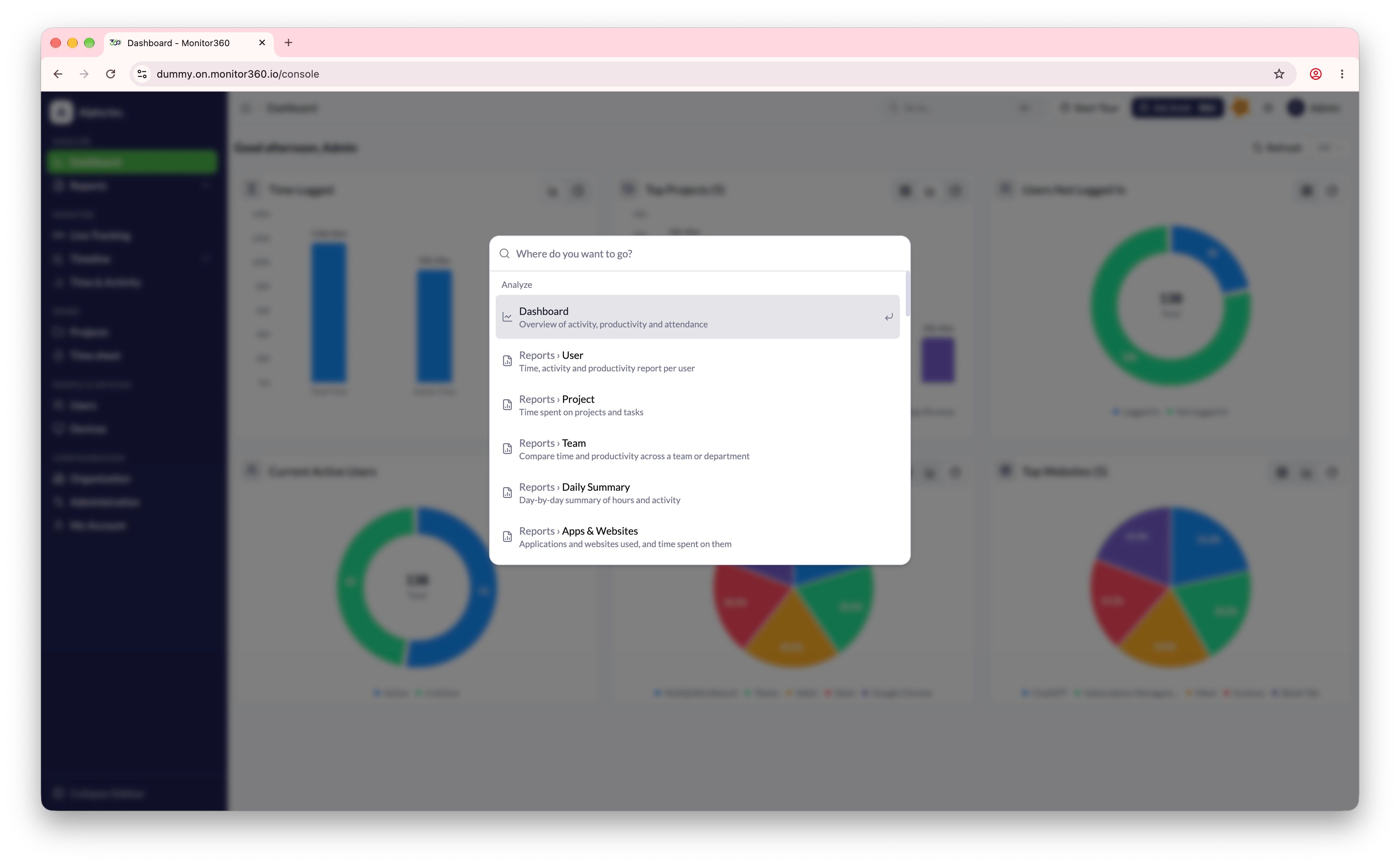
Press ⌘ + K on macOS or Ctrl + K on Windows and Linux to open the search palette. Start typing a page name, such as "shifts" or "api keys", and press Enter to jump to it. The palette lists exactly the pages you can open from the sidebar.
### Organization
Settings that describe your company:
* **Workforce** - [Departments](/organization/departments), [Designations](/organization/designations), [Shifts](/organization/shifts)
* **Custom Branding** - [Logo and Color](/organization/custom-branding)
### Administration
Settings that control tracking, connections, and logs:
* **Tracker Settings** - [Global and User Specific](/tracker-settings), [Website Blocker](/website-blocker), [Applications](/tracker-settings/applications), [Application and Website Grouping Rules](/advanced-settings)
* **Connections** - [Integrations](/organization/integrations), [API Keys](/settings/api-keys)
* **Logs** - [Audit Log](/settings/audit-logs), [Device Events](/devices/device-events), [Active Sessions](/organization/active-sessions), [API Request Logs](/settings/api-keys#viewing-request-logs)
* **Notifications** - [Email Reports](/settings/email-reports)
* **Sresh Usage** - [Sresh Usage](/sresh/usage)
## Quick search
Press ⌘ + K on macOS or Ctrl + K on Windows and Linux to open the search palette. Start typing a page name, such as "shifts" or "api keys", and press Enter to jump to it. The palette lists exactly the pages you can open from the sidebar.
 ## Page tours
Most pages have a guided tour. Click **Start Tour** in the top-right of the page header to walk through each part of the page step by step. Use **Back** and **Next** to move between steps, or **Skip tour** to close it.
This documentation is built and hosted on [Mintlify](https://mintlify.com), a developer documentation platform.
## Page tours
Most pages have a guided tour. Click **Start Tour** in the top-right of the page header to walk through each part of the page step by step. Use **Back** and **Next** to move between steps, or **Skip tour** to close it.
This documentation is built and hosted on [Mintlify](https://mintlify.com), a developer documentation platform.