> ## Documentation Index
> Fetch the complete documentation index at: https://docs.monitor360.io/llms.txt
> Use this file to discover all available pages before exploring further.
# Download & Install
> Step-by-step guide to download, install, and set up the Monitor360 desktop application
## Step 1: Download the Monitor360 Desktop Application
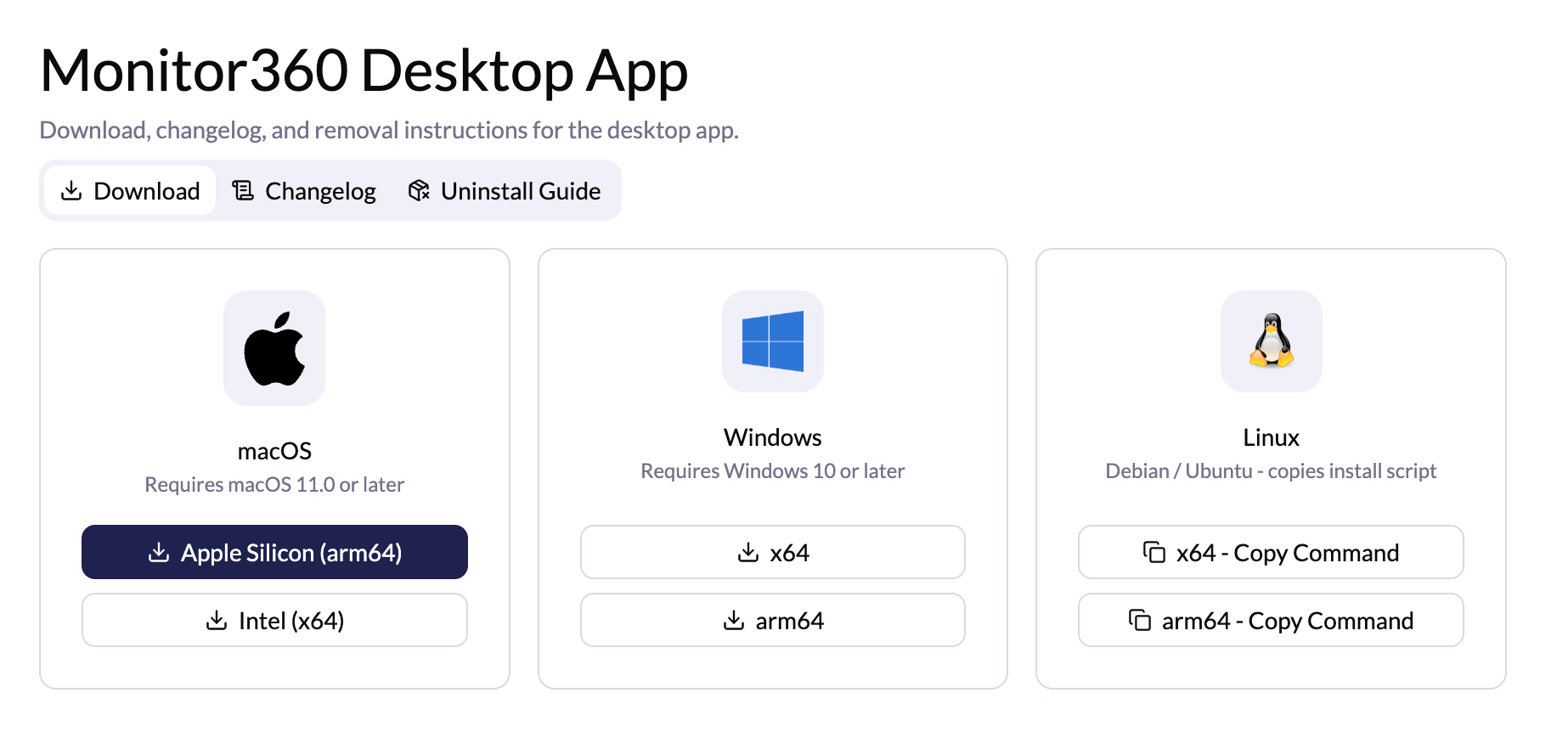
1. Open the Monitor360 download page.
2. Select the appropriate version based on your operating system:
**macOS**
* Apple Silicon (arm64) - for M1, M2, M3, and newer Macs
* Intel (x64) - for Intel-based Macs
**Windows**
* x64 - for standard 64-bit Windows systems
* arm64 - for ARM-based Windows devices
**Linux**
* Copy the installation command for either x64 or arm64 and run it in the terminal.
 ## Step 2: Grant Required Permissions
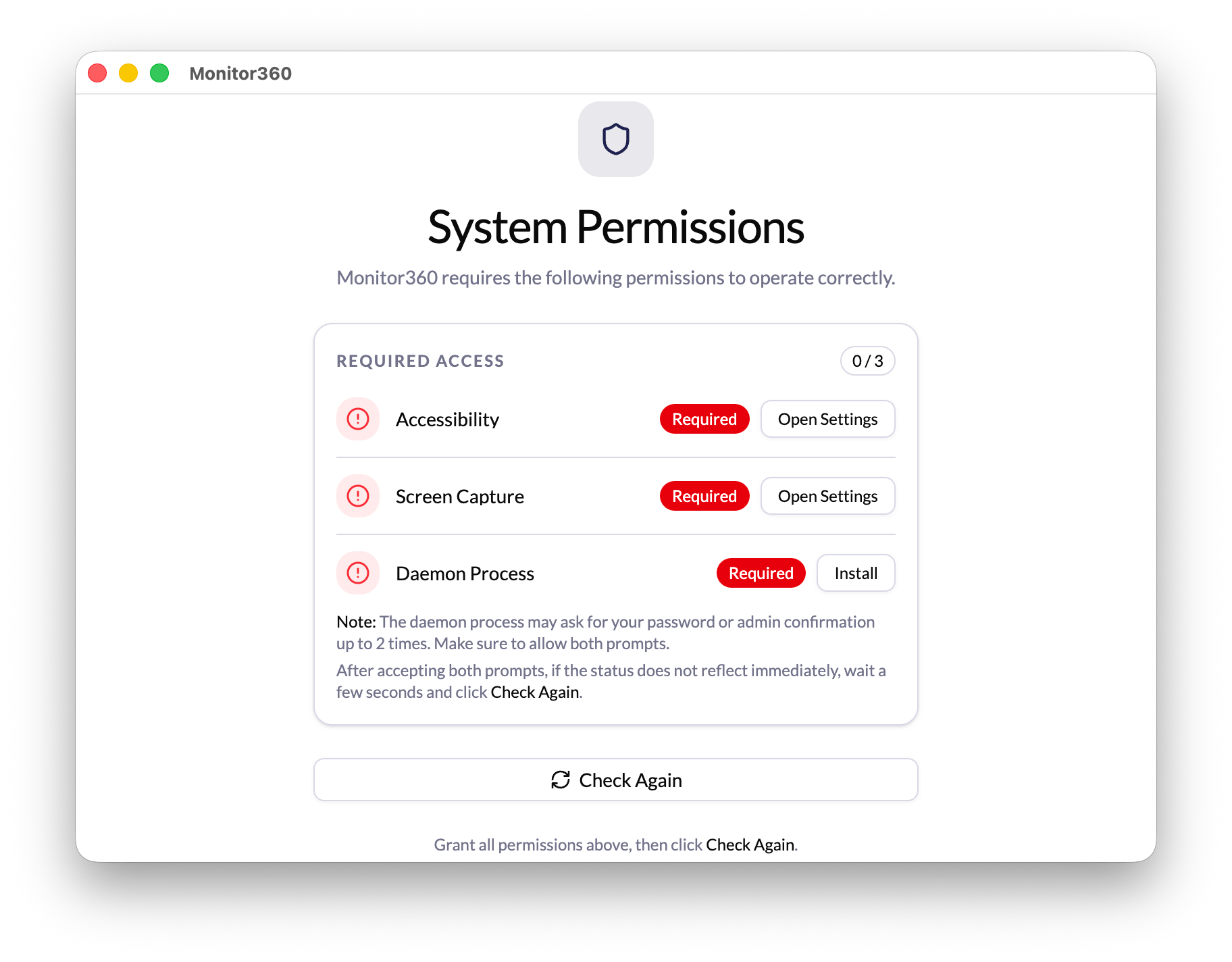
After installing the Monitor360 Desktop App, open the application. A permission window will appear. Allow all required permissions to ensure the application functions correctly.
Once the permissions are granted, click **Check Again** to proceed.
## Step 2: Grant Required Permissions
After installing the Monitor360 Desktop App, open the application. A permission window will appear. Allow all required permissions to ensure the application functions correctly.
Once the permissions are granted, click **Check Again** to proceed.
 ## Step 3: Enter Workspace Subdomain
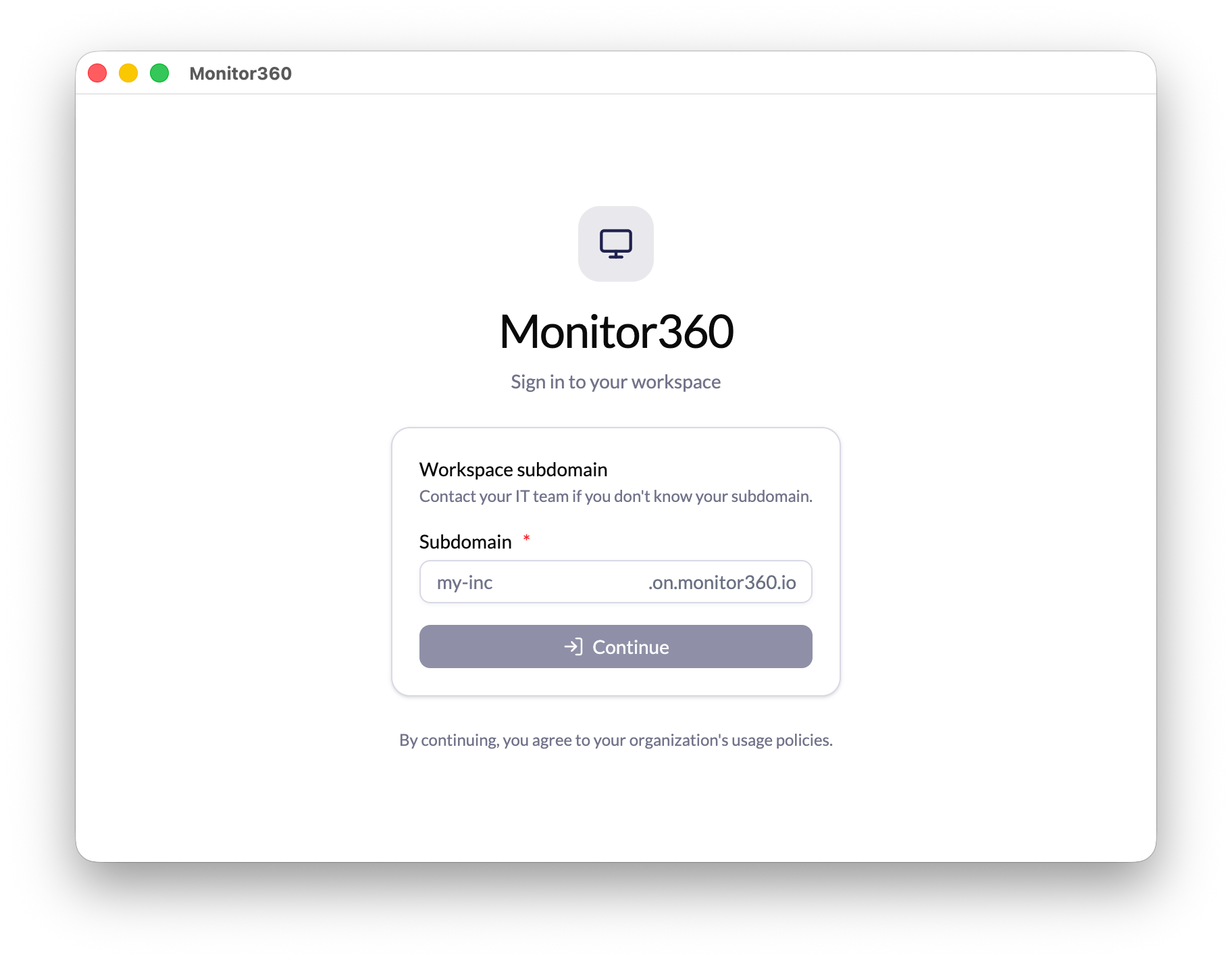
Open the Monitor360 application and enter your assigned **Workspace Subdomain** (e.g., `my-inc`) in the Subdomain field. Then click **Continue** to proceed.
Contact your administrator if you do not know your workspace subdomain.
## Step 3: Enter Workspace Subdomain
Open the Monitor360 application and enter your assigned **Workspace Subdomain** (e.g., `my-inc`) in the Subdomain field. Then click **Continue** to proceed.
Contact your administrator if you do not know your workspace subdomain.
 ## Step 4: Share the Device Identifier
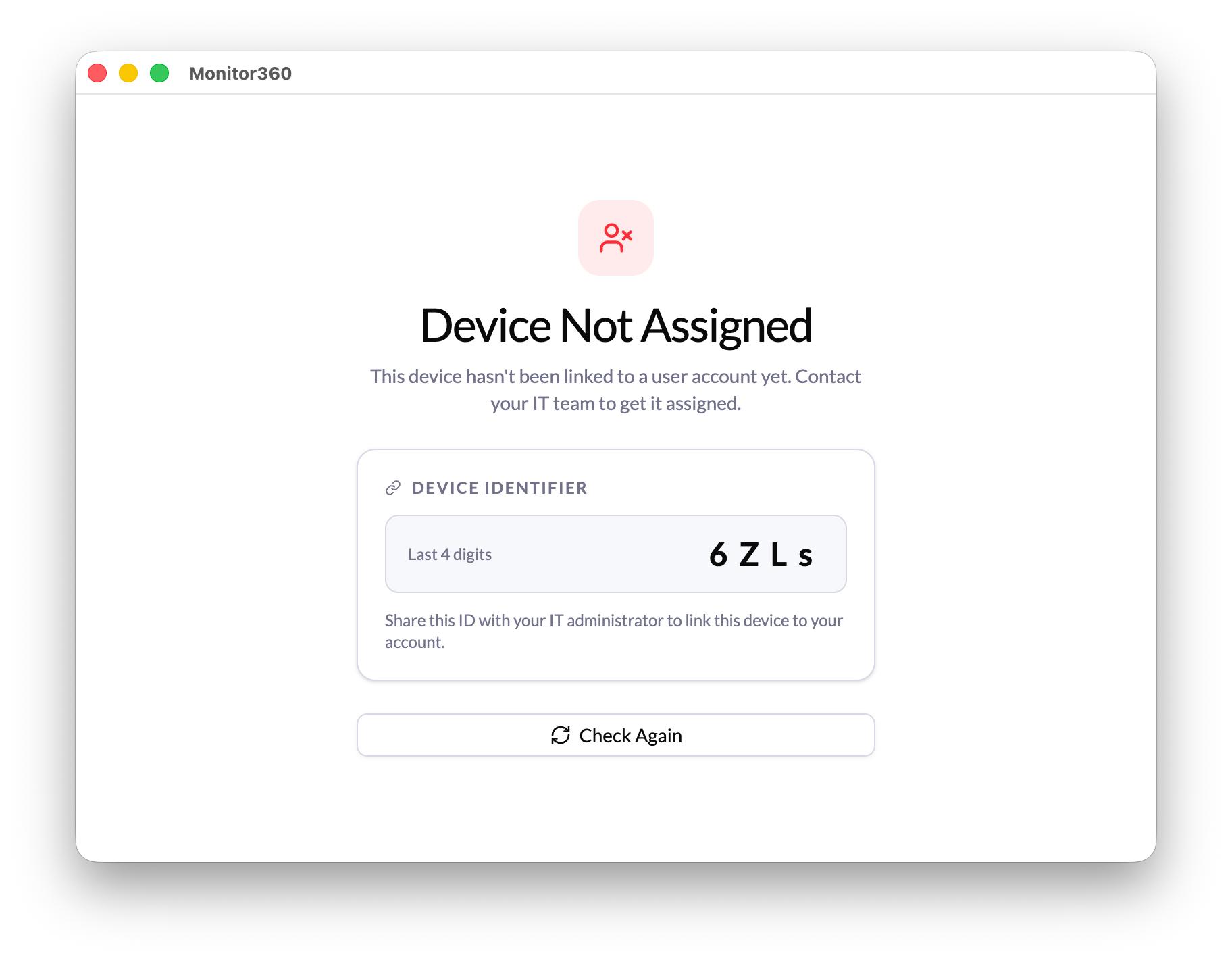
A **Device Identifier (4-digit code)** will be displayed. Share this code with your administrator so they can link the device to your user account.
After the device has been assigned, click **Check Again** to continue.
## Step 4: Share the Device Identifier
A **Device Identifier (4-digit code)** will be displayed. Share this code with your administrator so they can link the device to your user account.
After the device has been assigned, click **Check Again** to continue.
 ## Step 5: Restart Your System
Once the administrator has assigned your user account to the device, restart your system. This ensures that all settings are applied correctly and the Monitor360 application functions properly.
A system restart is required after device assignment for proper
synchronisation.
## Step 5: Restart Your System
Once the administrator has assigned your user account to the device, restart your system. This ensures that all settings are applied correctly and the Monitor360 application functions properly.
A system restart is required after device assignment for proper
synchronisation.